
How to generate an access token from Instagram to interact with the Instagram graph API
This page is designed to help users automate Instagram posts easily. Across the world, millions of people use Instagram to post content, chat, and promote their ideas and concepts. From creative individuals and small business owners to large business professionals, people from every category rely on the platform to grow their presence. Many users truly manage more than one category at the same time.
However, manually supervising the Instagram pages can sometimes be stressful, as can struggling and being frustrated to create a theme, authoring captions, publishing continuously, and adding meaningful hashtags that are attached to Instagram guidelines; it requires consistent effort, attention, and time. Handling all these tasks manually often leads to struggle and burnout.
Efficiently use the Instagram graph API with Facebook Meta as a solution.
We have implemented this streamlined workflow that automates the Instagram Graph API. By setting up the app in the Meta Developer Tool (Facebook), Instagram Graph can simplify its posting process and maintain consistency without the pressure of manual handling.
Trust me, I already made the app for the Instagram Graph API and rendered the access token in the Meta developer panel.
You will learn how to create a new app in Meta and set up the Instagram product for the Instagram Graph API, including how to generate the access token and access the basic Graph API.
For the Instagram Graph API, create a new app using a Developer Meta account.
The first step to creating an app with the Meta platform. This process ensures your app is properly identified, configured, and allowed to interact with Meta’s platform and services.
Till you start….
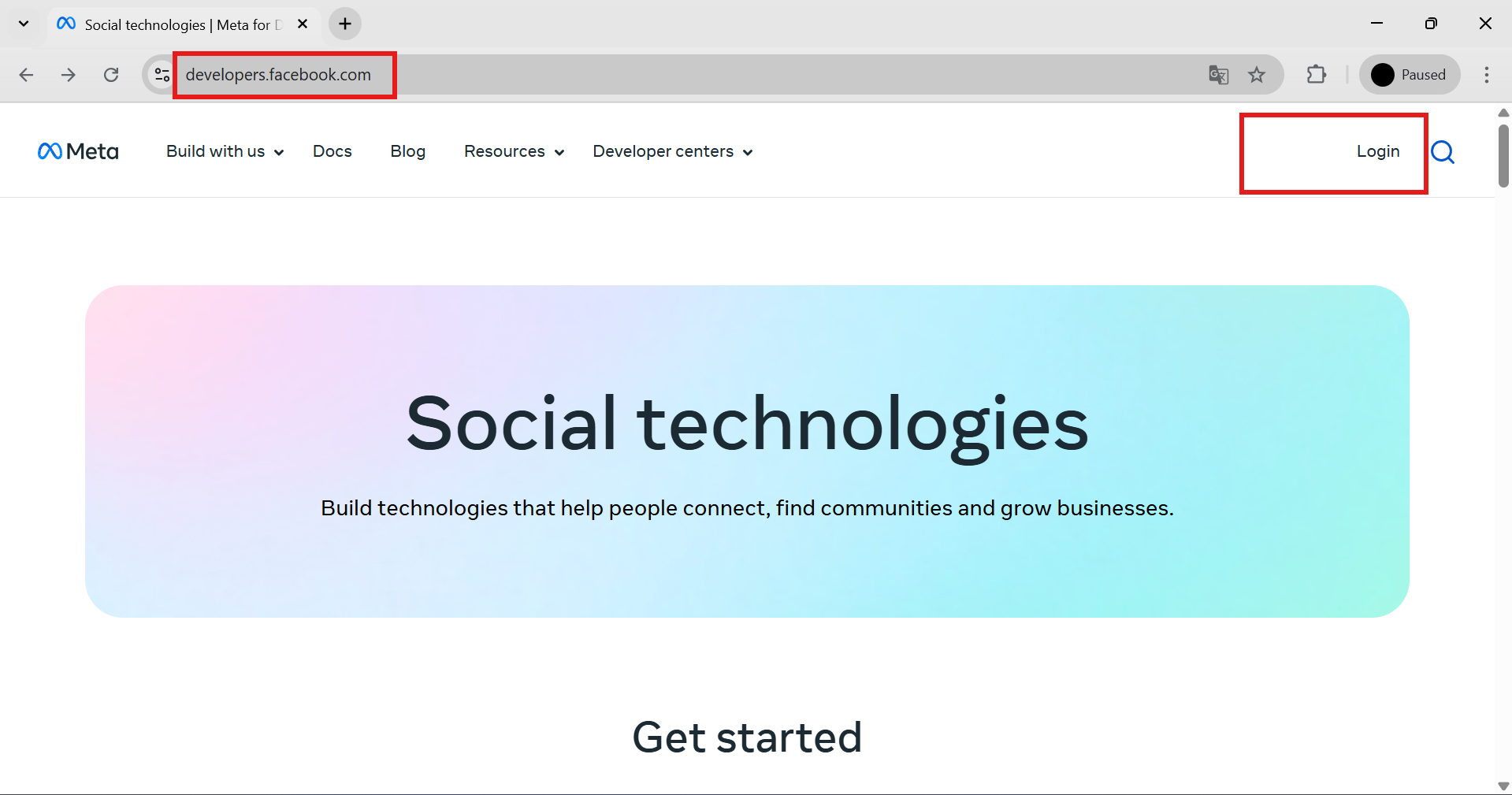
To create an app with Meta, you must log in to the Meta developer account https://developers.facebook.com/ with your Responsive Facebook Account ID.
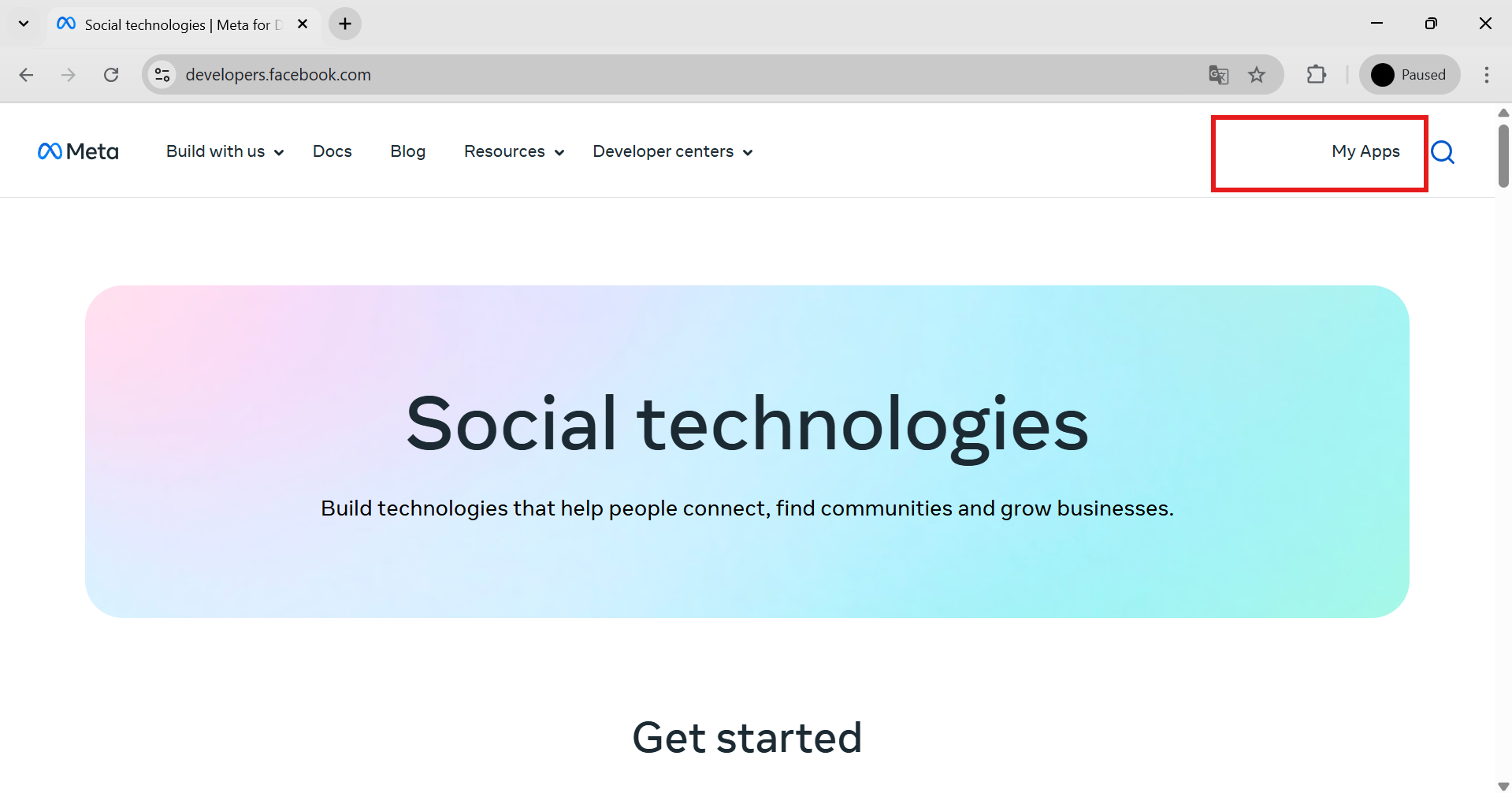
After logging in to the Meta Developer Account, you can find “My Apps” in the top right bind.
From there, you can see your existing apps or create a new app to start the setup method.
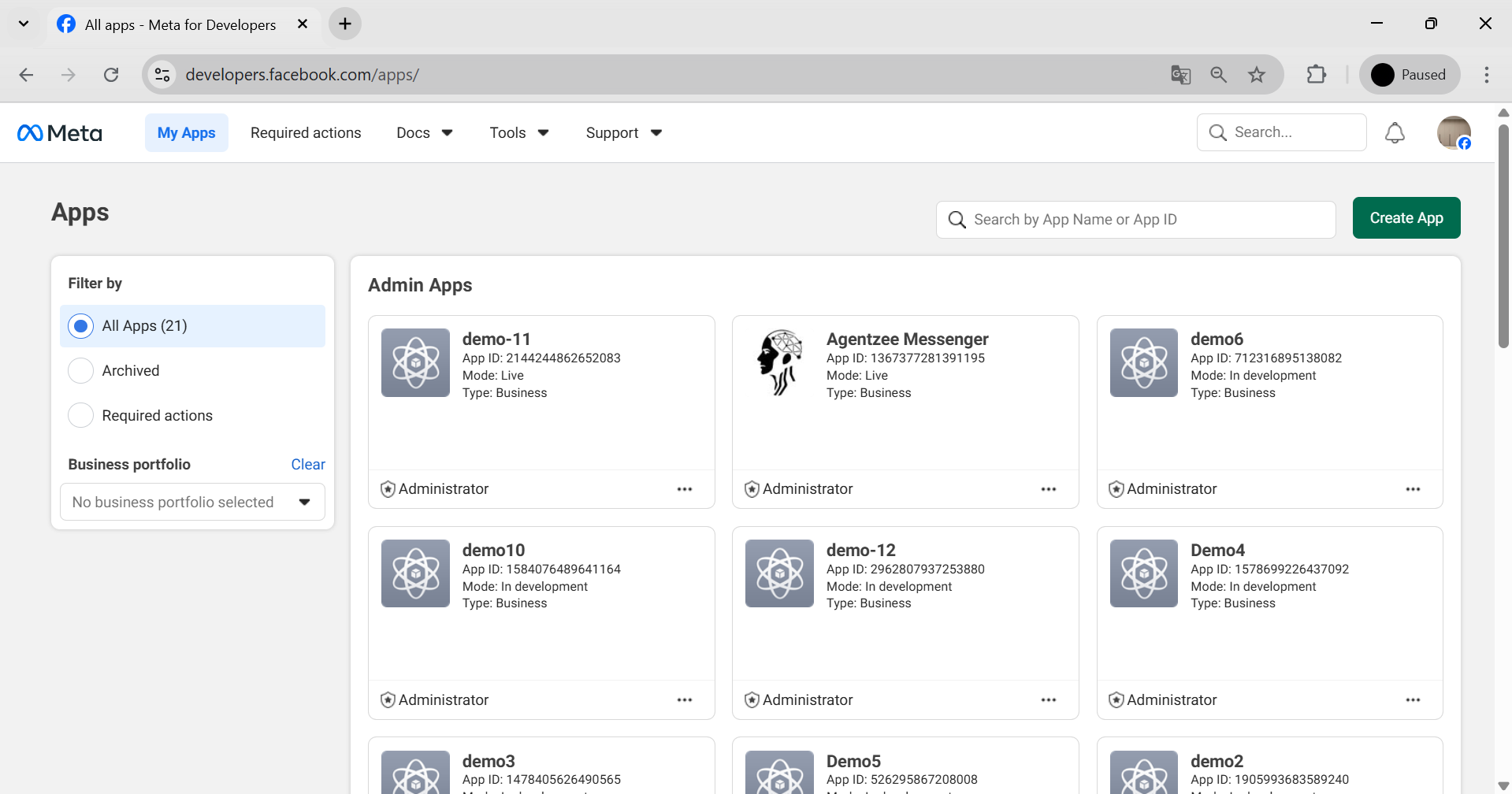
Step 1: First, create the Instagram Graph API app in the Meta Facebook developer panel.
For app creation, you can find out the previous page view in the top right corner. “Create App” is there. Click "Create App." After filling in the app name (e.g., "demo"), continue with the next step.
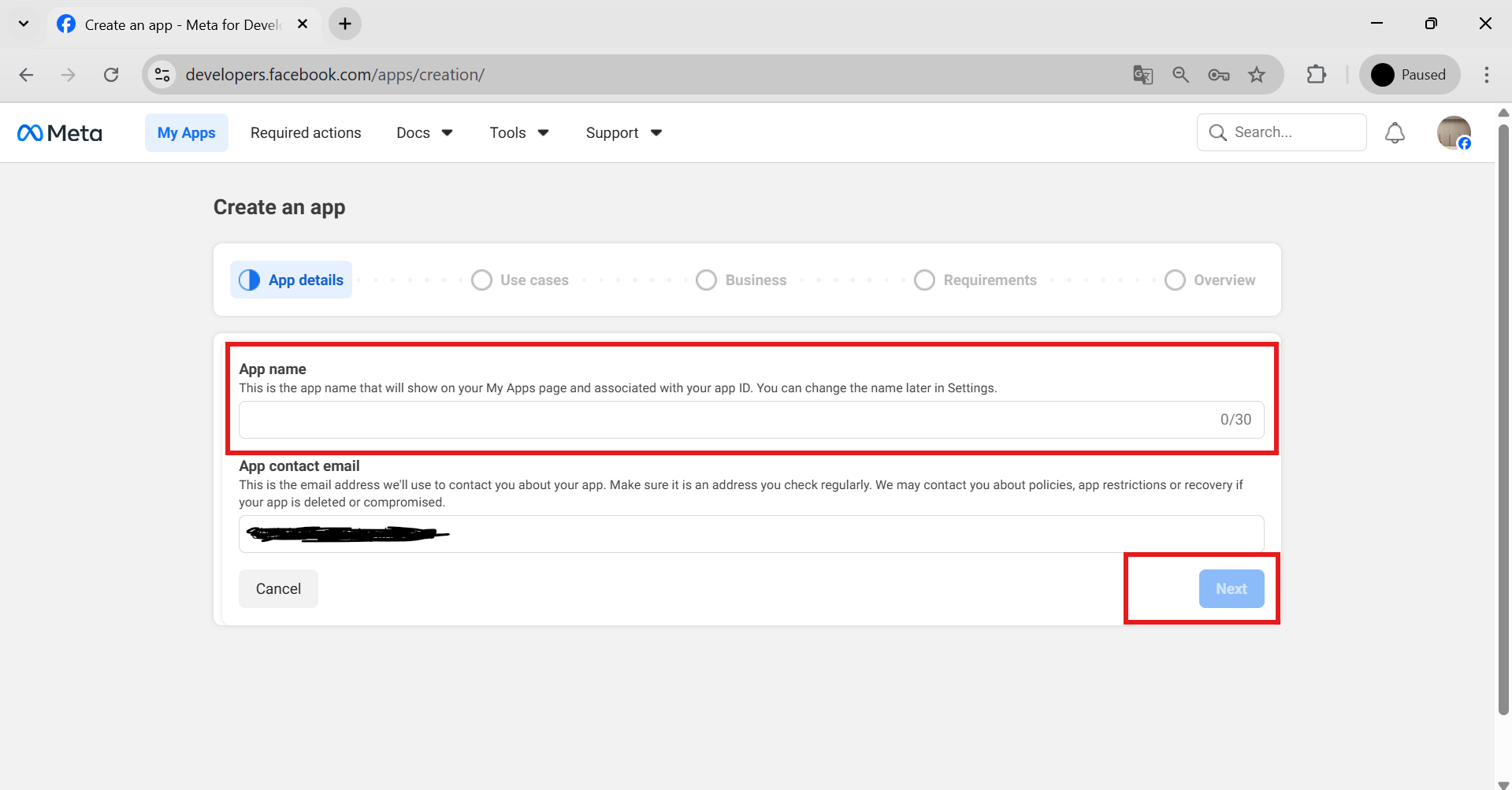
After the next button, currently, you are seeing "Featured” as the first option in the main side menu. In the drop-down menu, click the “All” radio button.
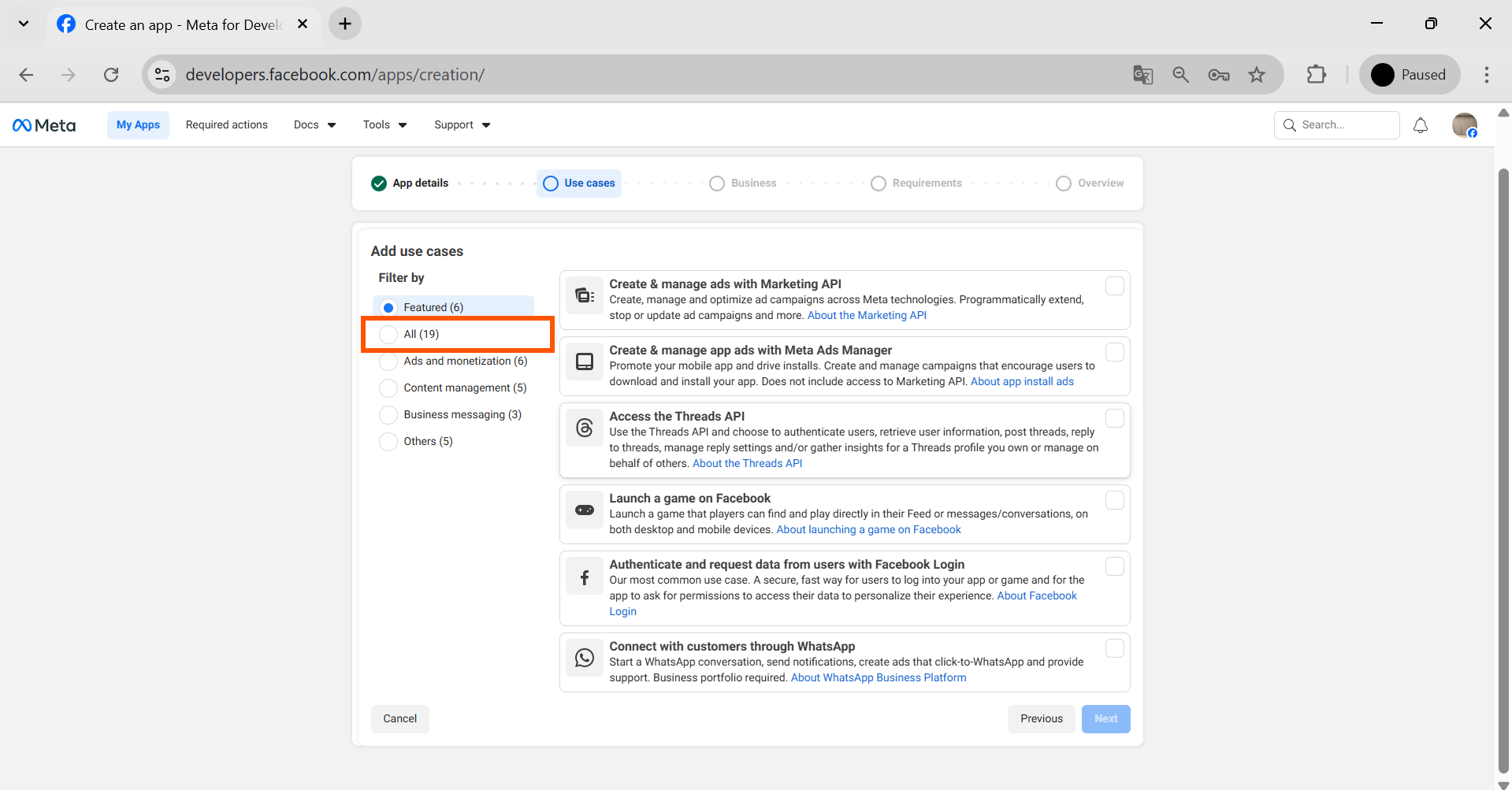
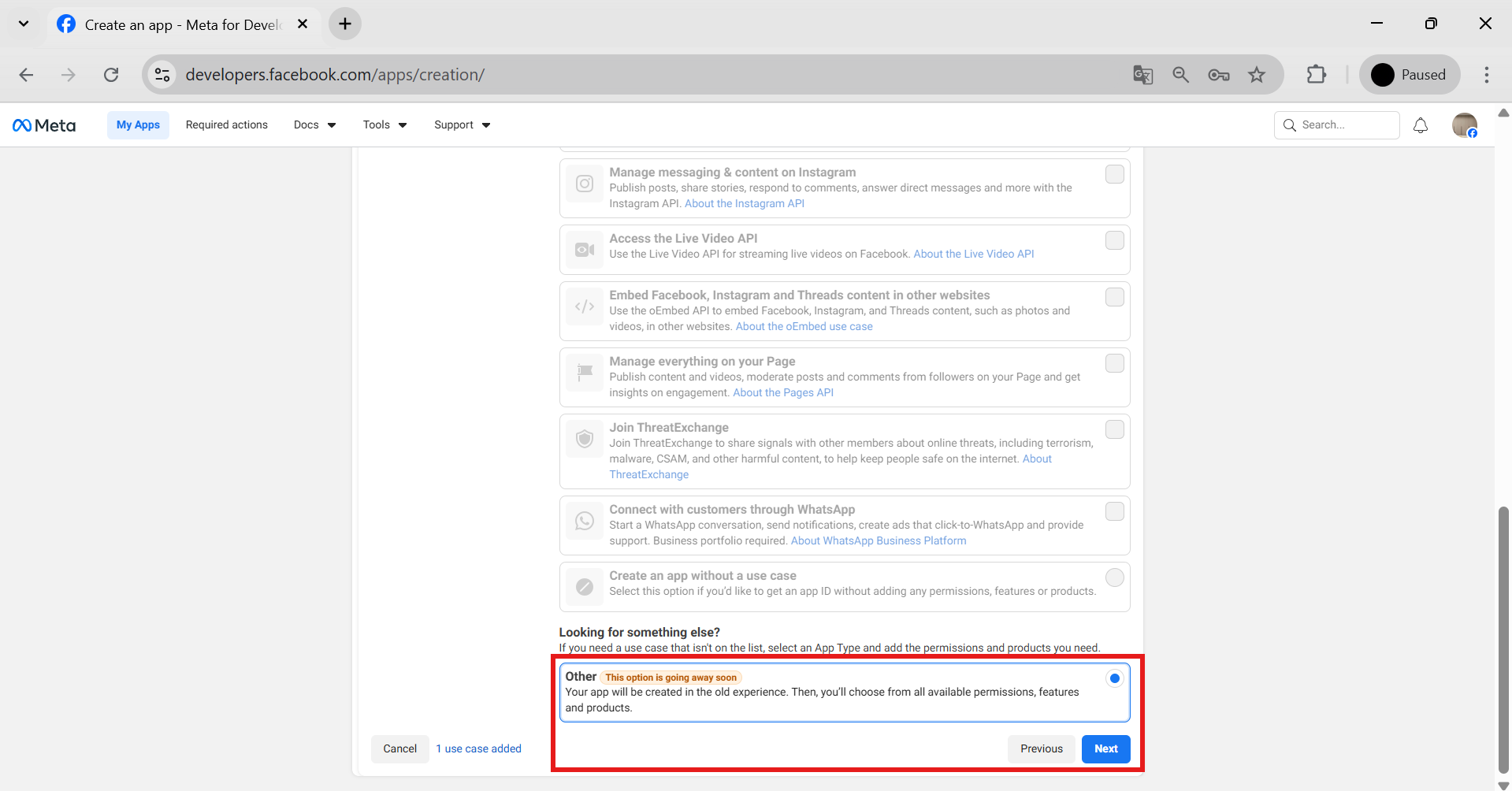
Continue by clicking the “All” button, and then go to the end of the page, click the "Other” radio button, and continue with the next.
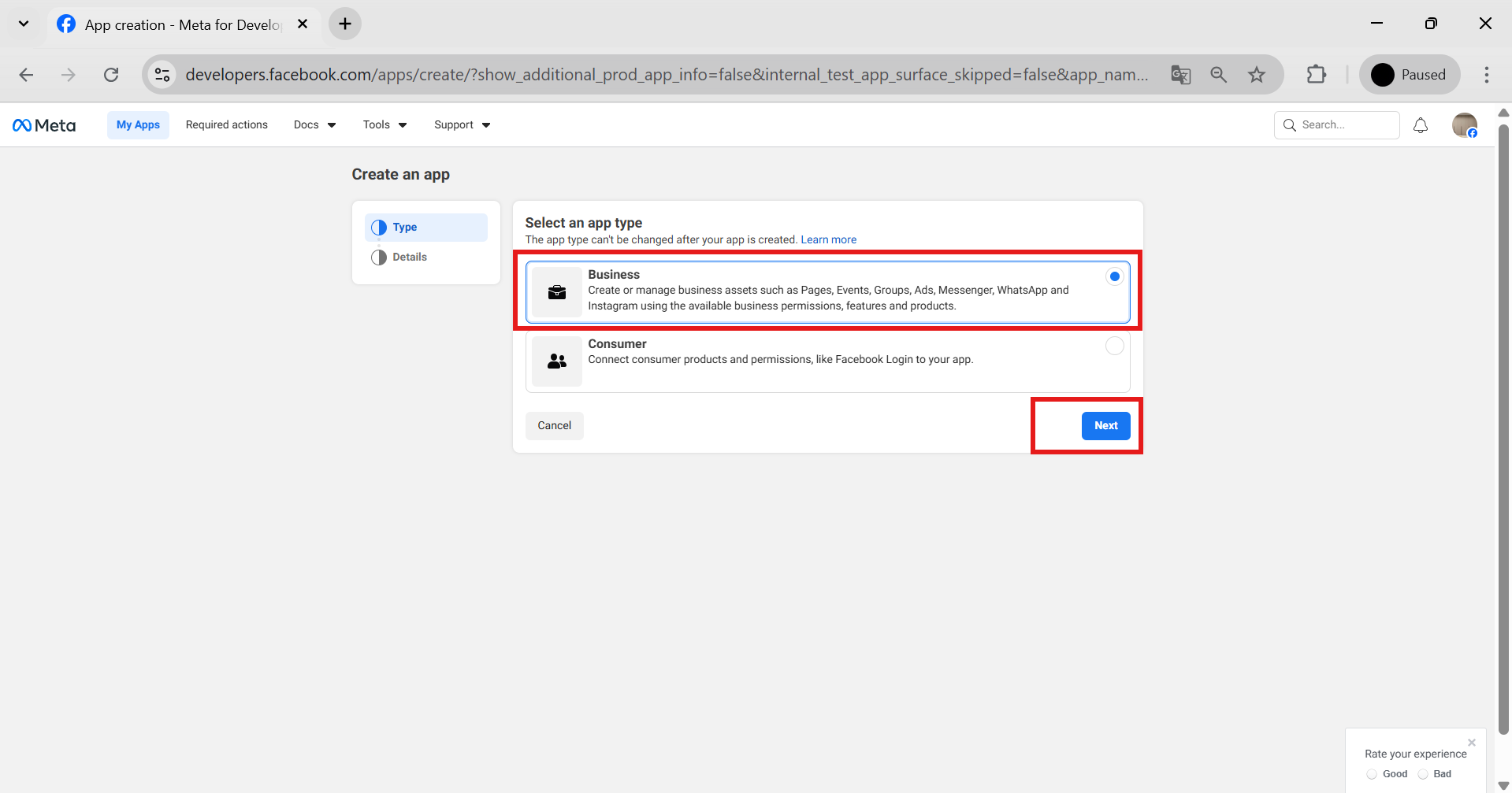
Next Step: It moves on to select an app type section; the Instagram API only works for an Instagram business account, so the reason we need to select the business type is to continue to the next button.
Finally, we created the app by clicking "create app.”
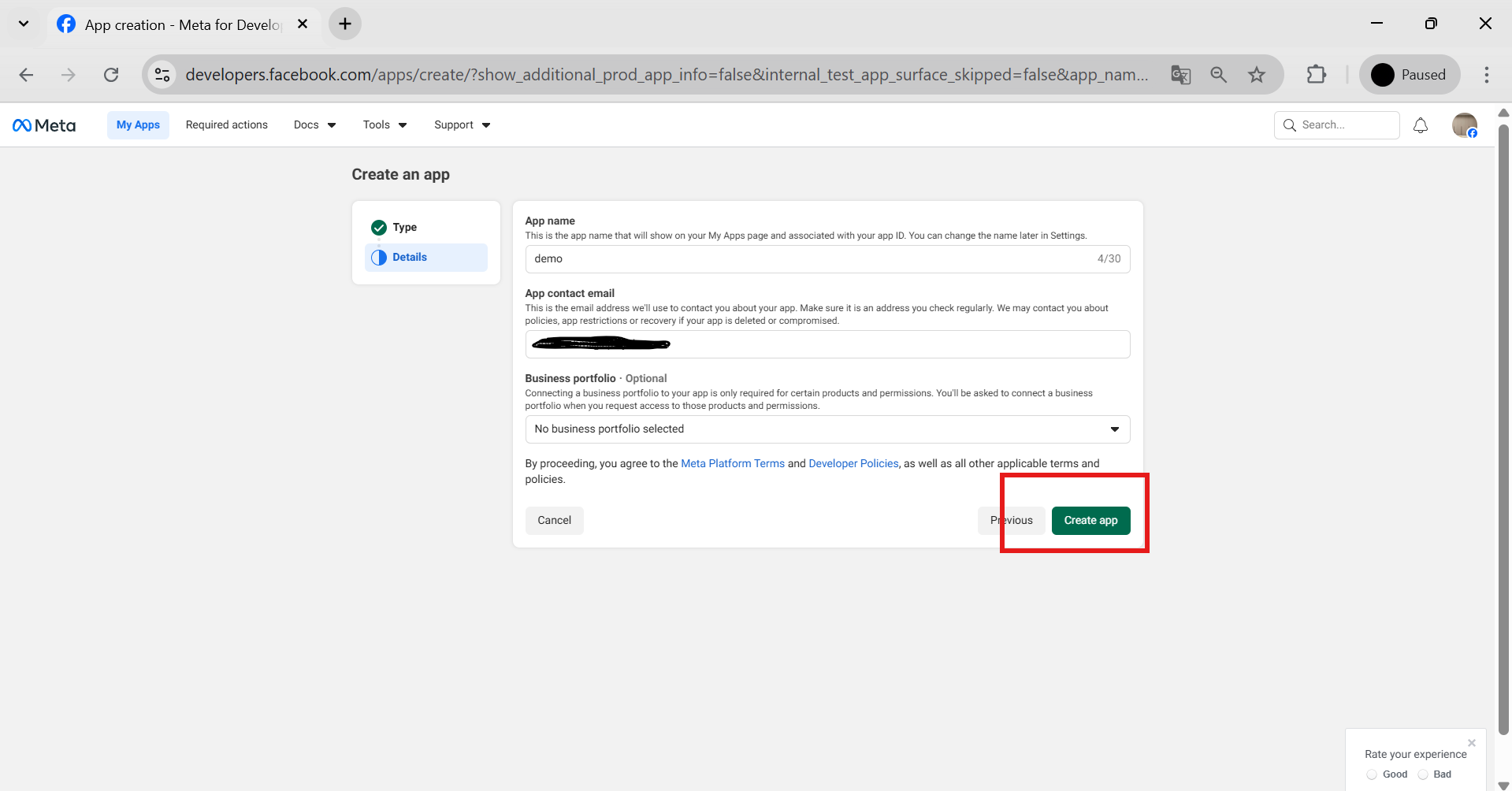
Step 2: For the Instagram Graph API, set up the Instagram product for our Meta app.
In the meta tool, there are more than 10 different products available. Out of all those options, I need help with setting up Instagram. So now we're set up with the Instagram product. Scroll down to add products, and find out the Instagram click setup for the Instagram Graph API.
(a) Add the Instagram Product in the Meta Developer app.
Inside your app dashboard, scroll down to Add Product and find the Instagram product. Click Setup.
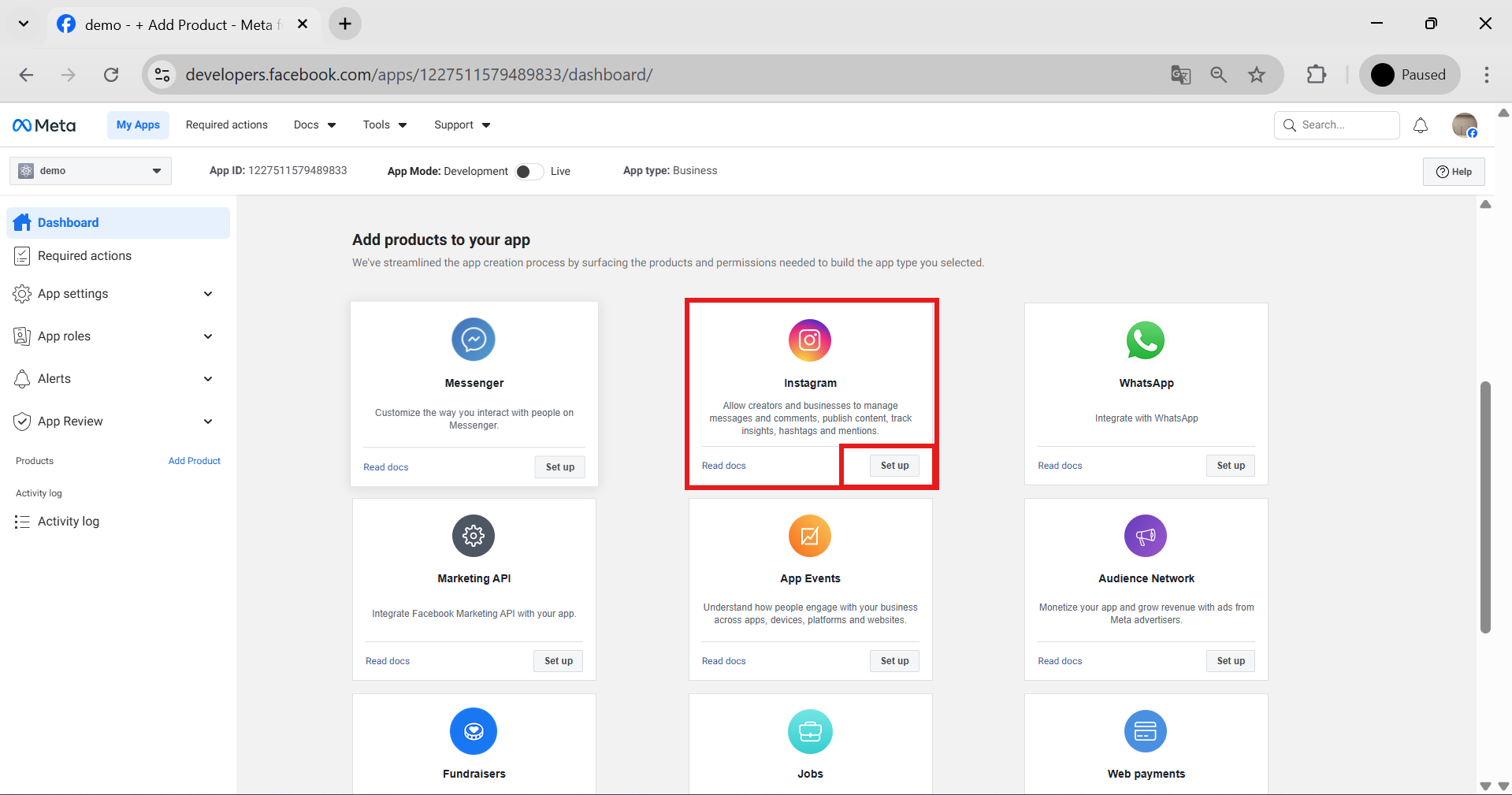
After Instagram setup, you get the API set up with the Instagram login page.
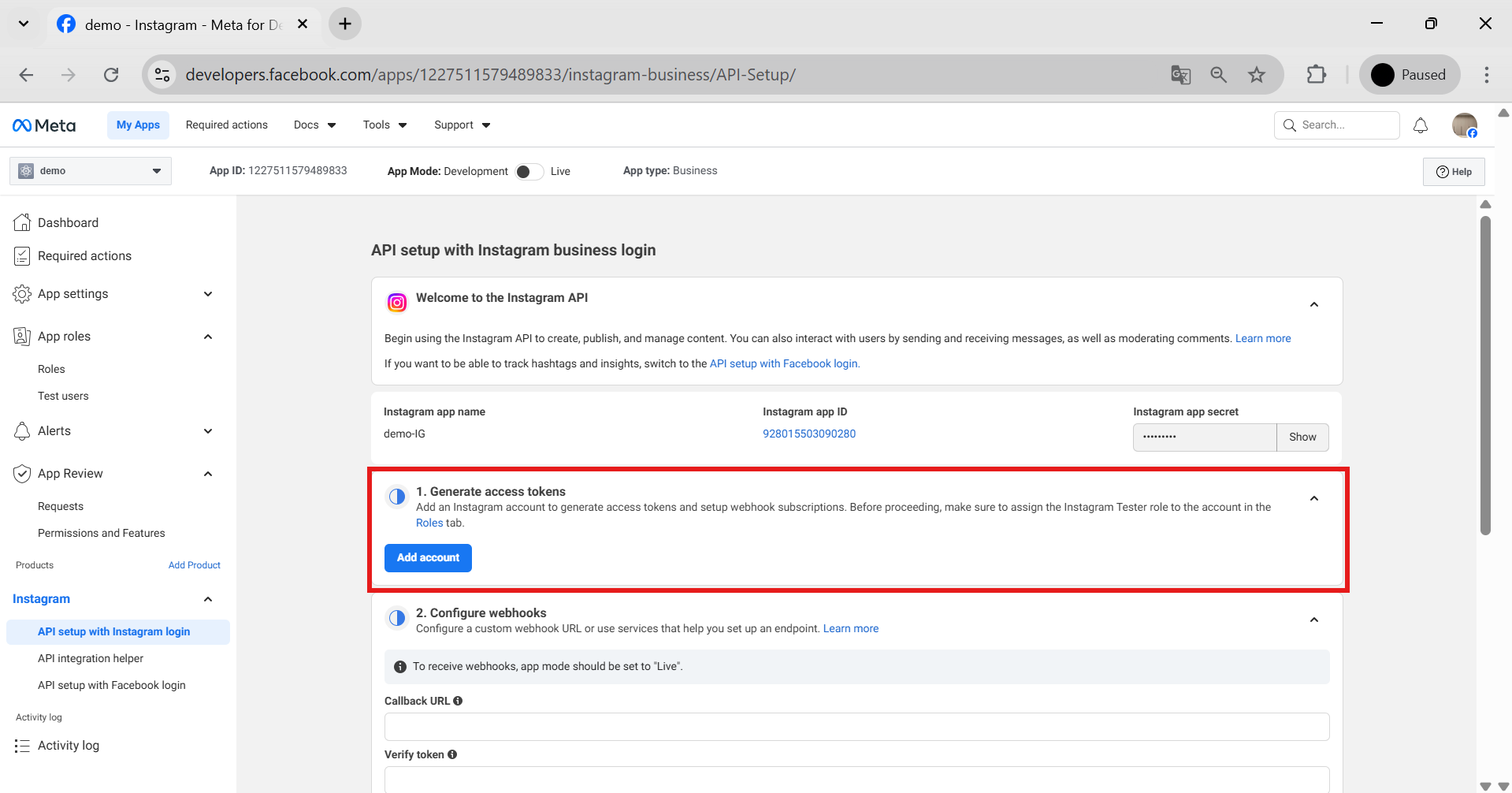
Note:* Your account must be professional (business or creator).
(b) Convert Instagram to Professional (if not Professional).
Open the Instagram app:
Go to settings
Account
Switch to Professional Account
Choose Business or Creator
(c) Connect Instagram to a Facebook page.
Open the Facebook app:
Go to your Facebook page
Click "Settings.”
Click Linked Accounts
Connect the Instagram account
Now Instagram is linked correctly.
After completing all of them, you see the Instagram account in the meta tool. In the left menu, click on the App Roles option in the dropdown menu. Roles
See like this….
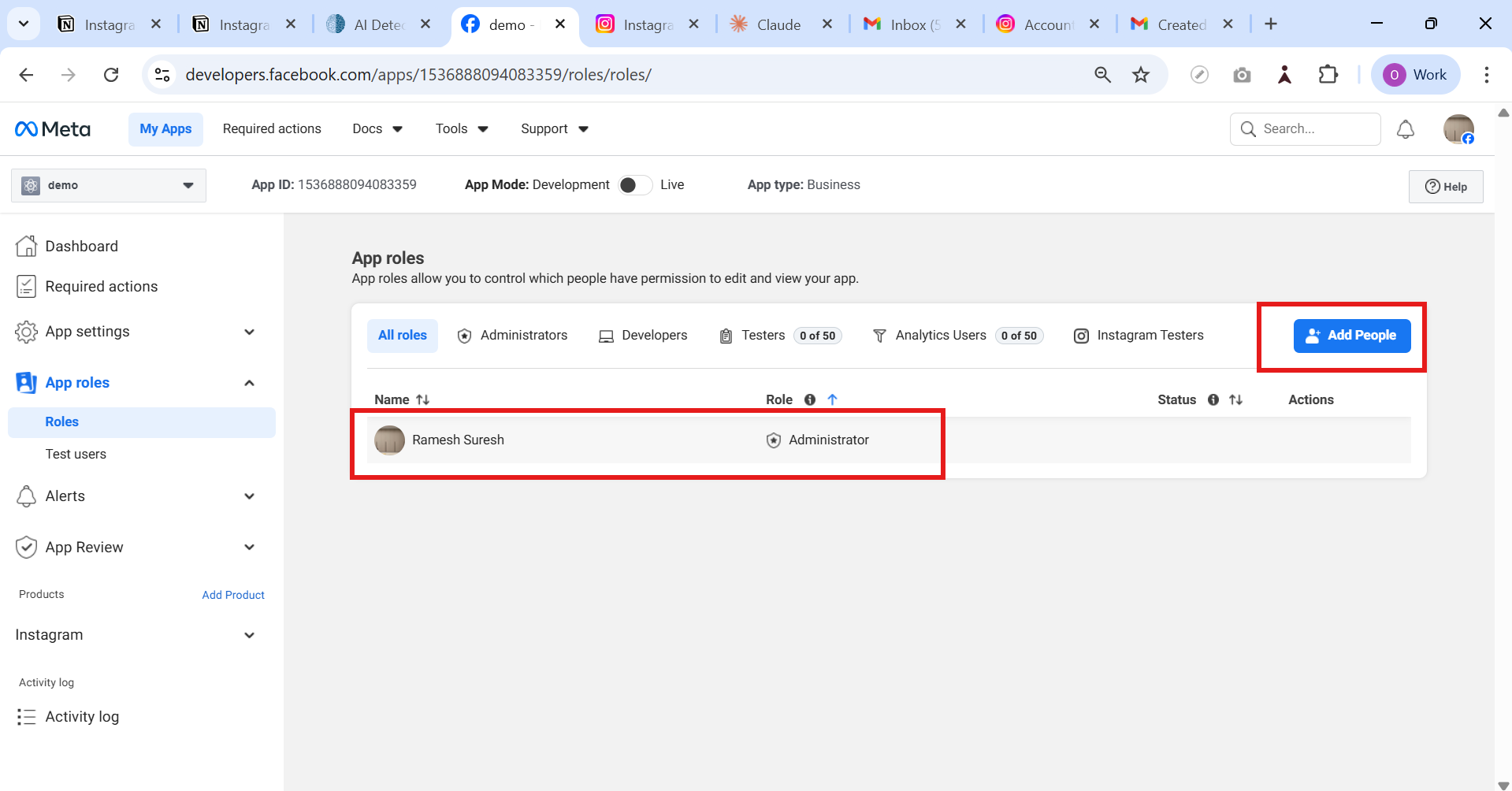
By using the Add People button, add the Instagram account roles inside the app roles.
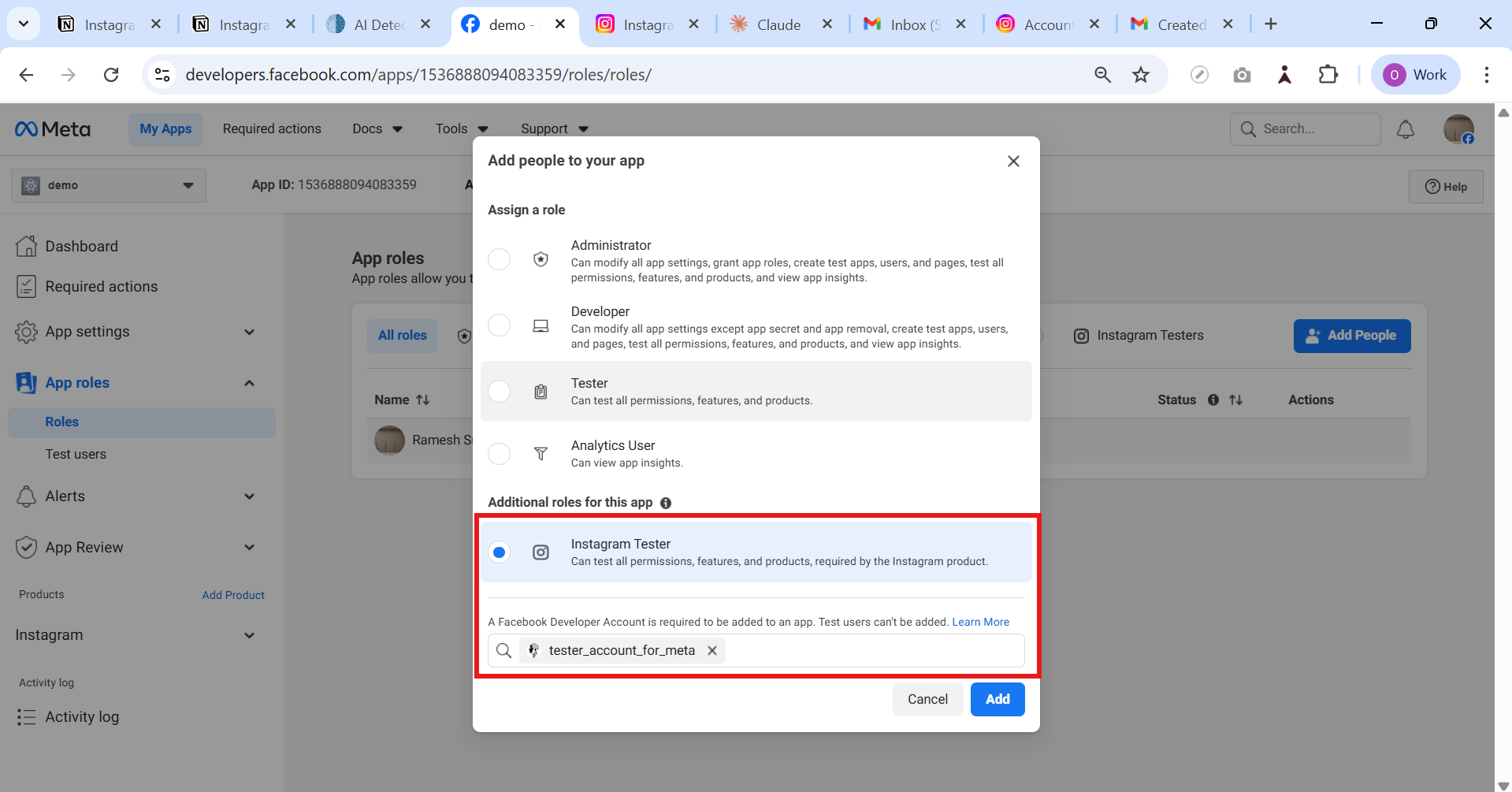
After adding people, the Instagram account is added, and it shows pending. To fix this is the next step
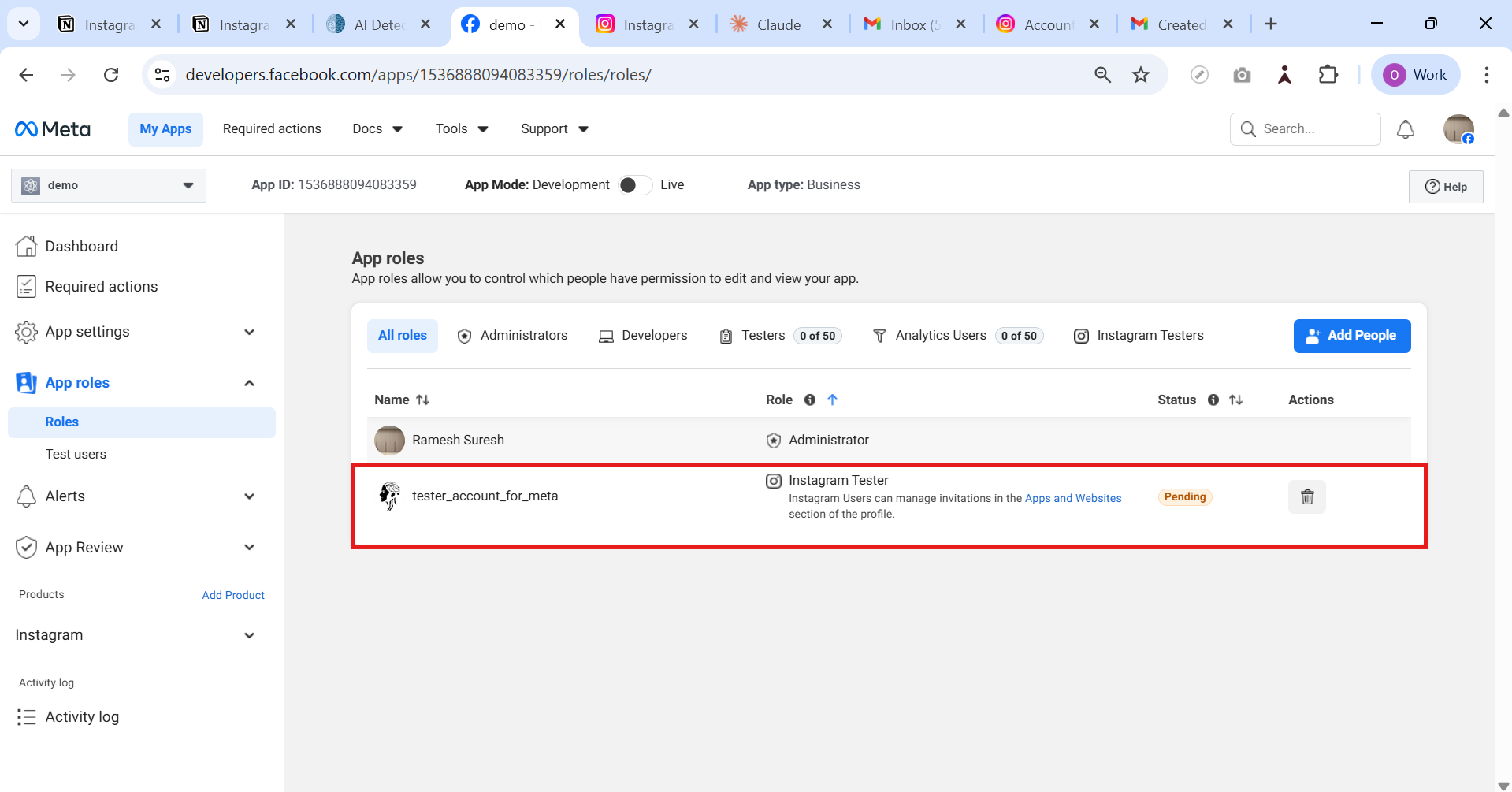
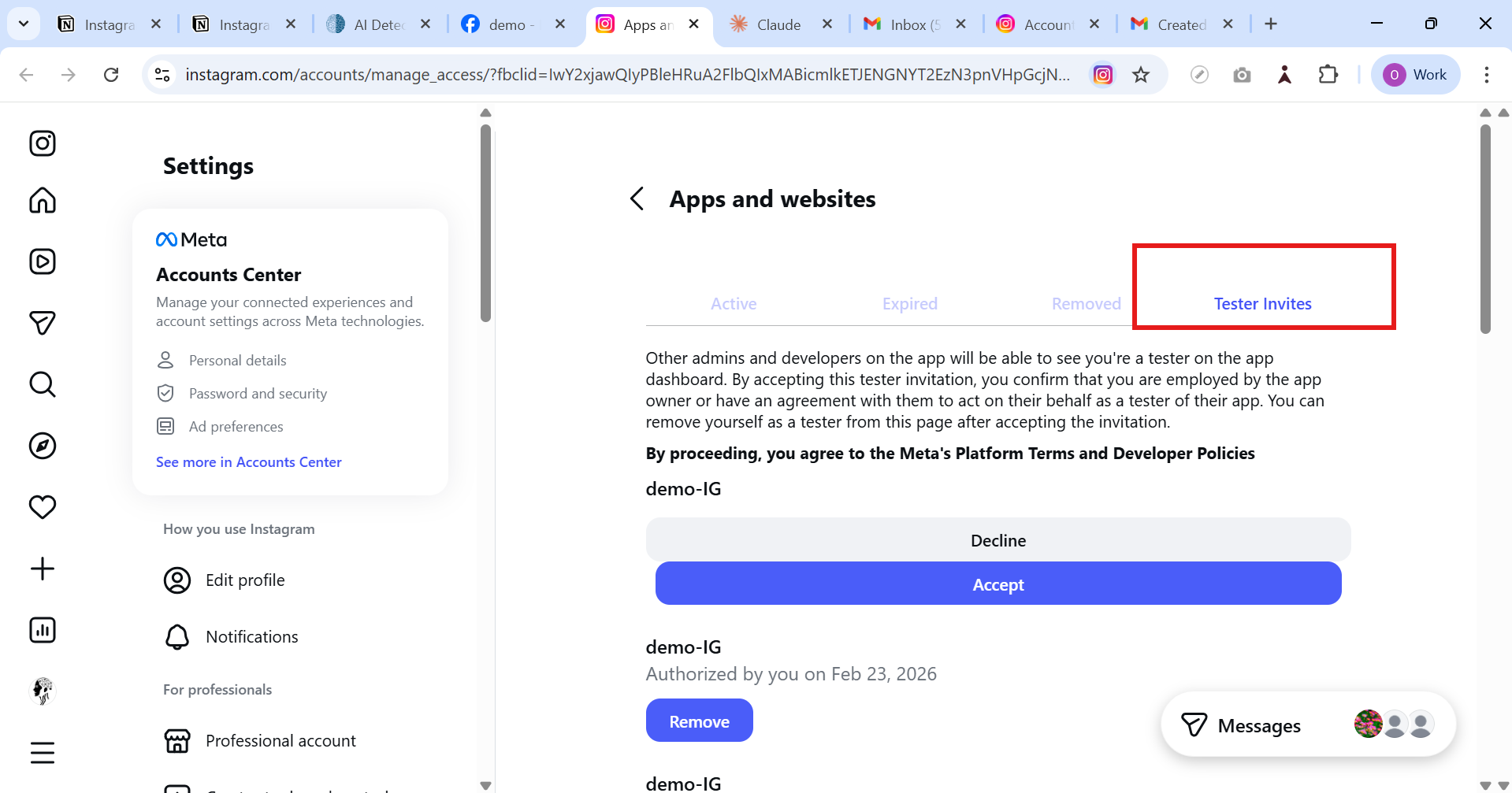
In that Instagram role, after adding the Instagram account, you see the apps and websites as a link page. Click on that, and it redirects to the Instagram account page in the navbar, having 4 options: Active, Expired, Removed, and Tester Invites
Click on > Tester Invites
Find out if the app clicks "accept.”
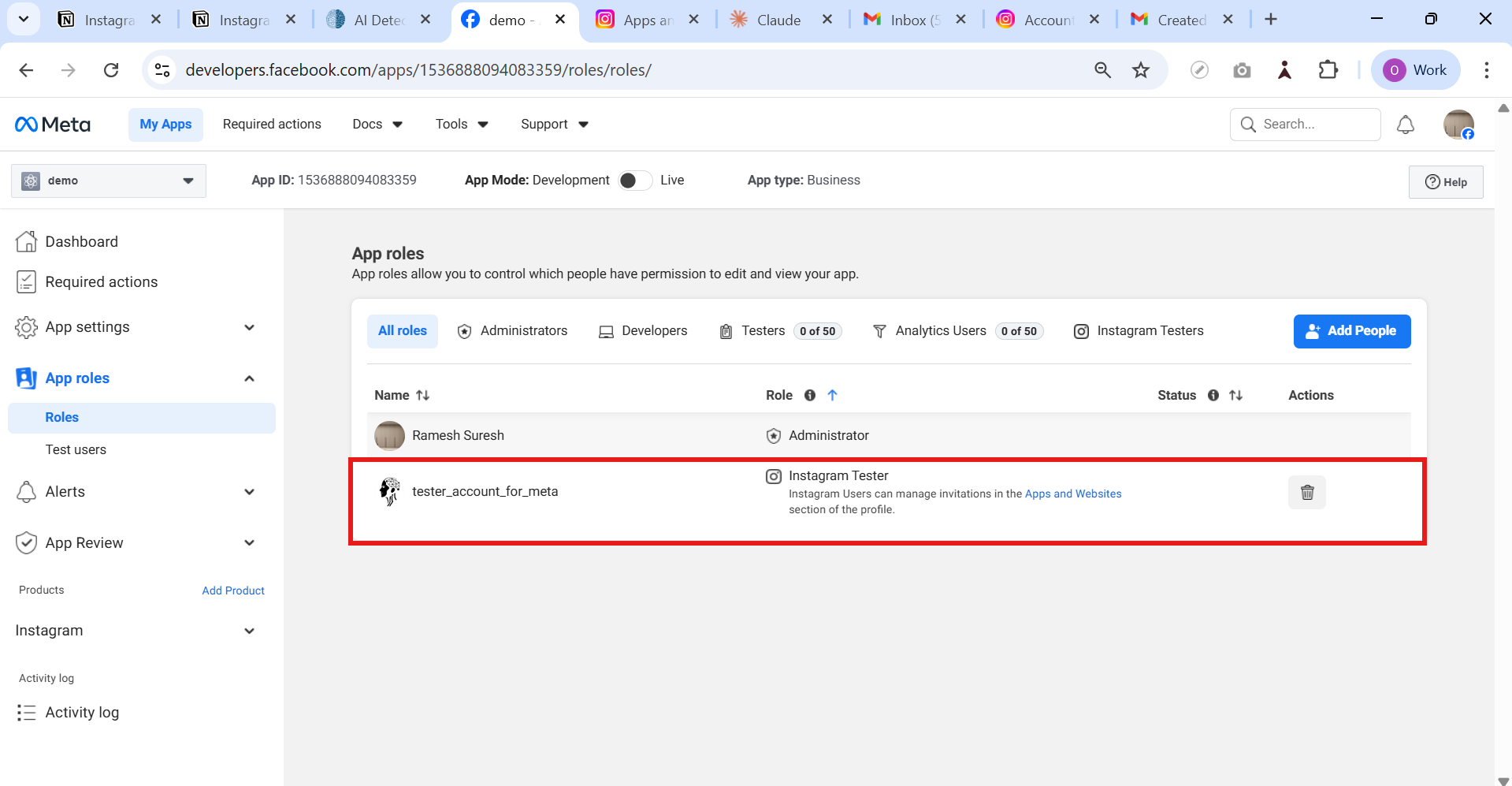
After accepting, the Meta app connects to the Instagram account
Like this ….
Step 3: Generate the access token for the Instagram Graph APIs.
Since the Instagram access token is generated in the API setup with the Instagram business login page, on the left-side menu, have Instagram in the dropdown as API setup with the Instagram login section.
Next, locate the ”Generate access tokens” dropdown menu. We need to generate the token by clicking “generate token” for the Instagram API.
A user access token with the following permissions: instagram_basic, instagram_manage__insights, pages_show_list, and pages_read_engagement.
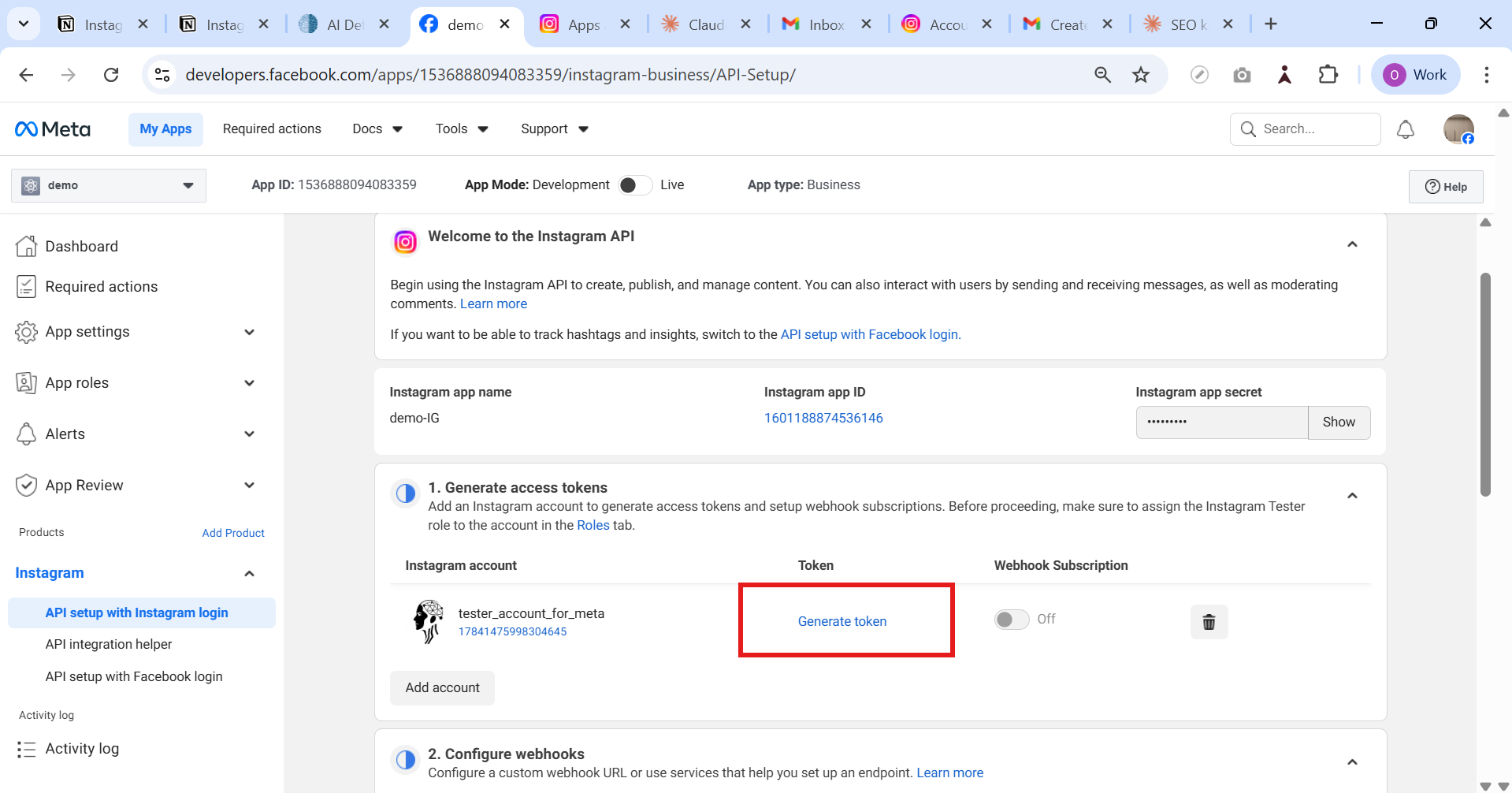
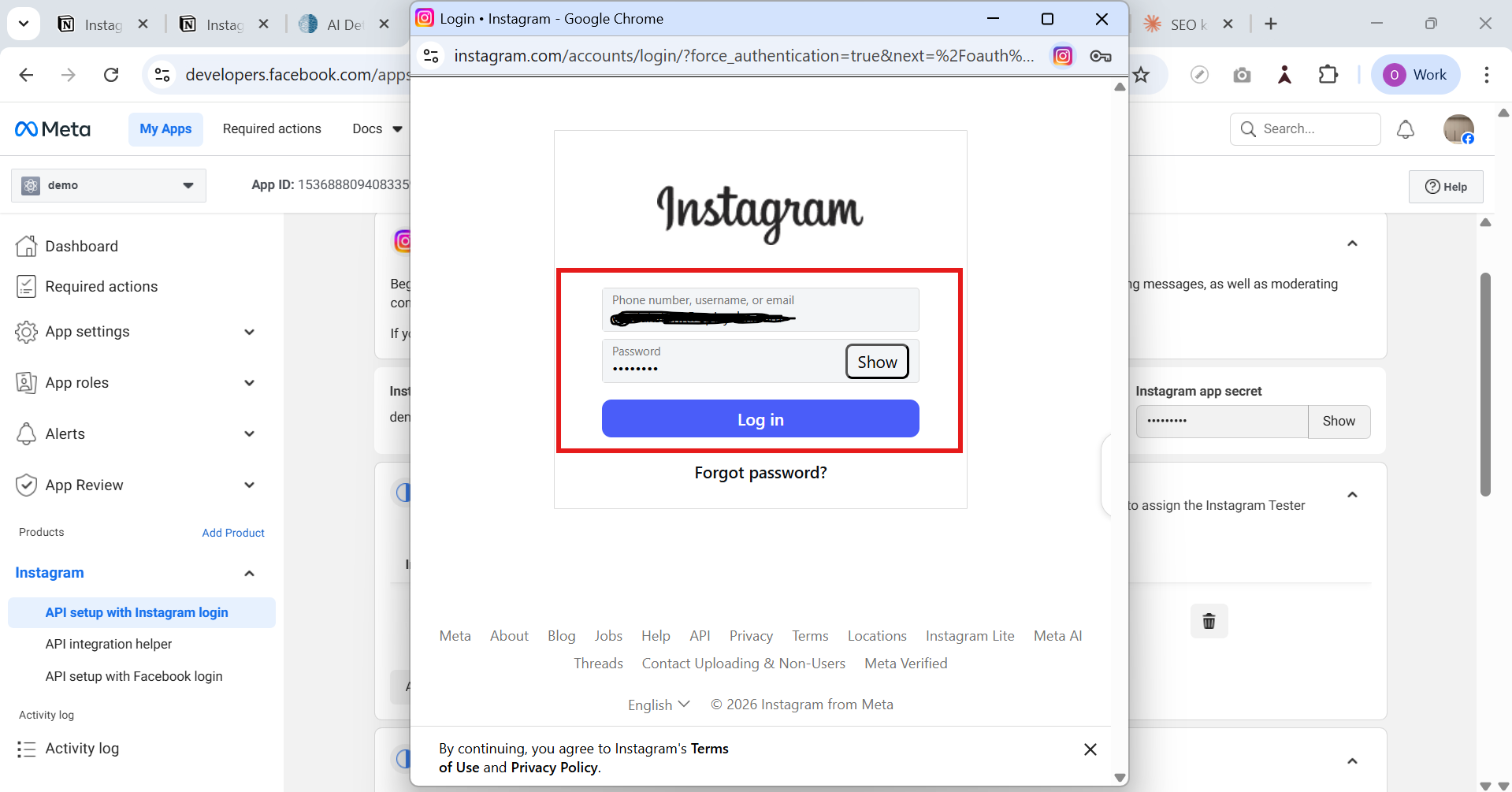
Continue that, which redirects to the Instagram login page. By using the mail ID and password.
Click > Log in
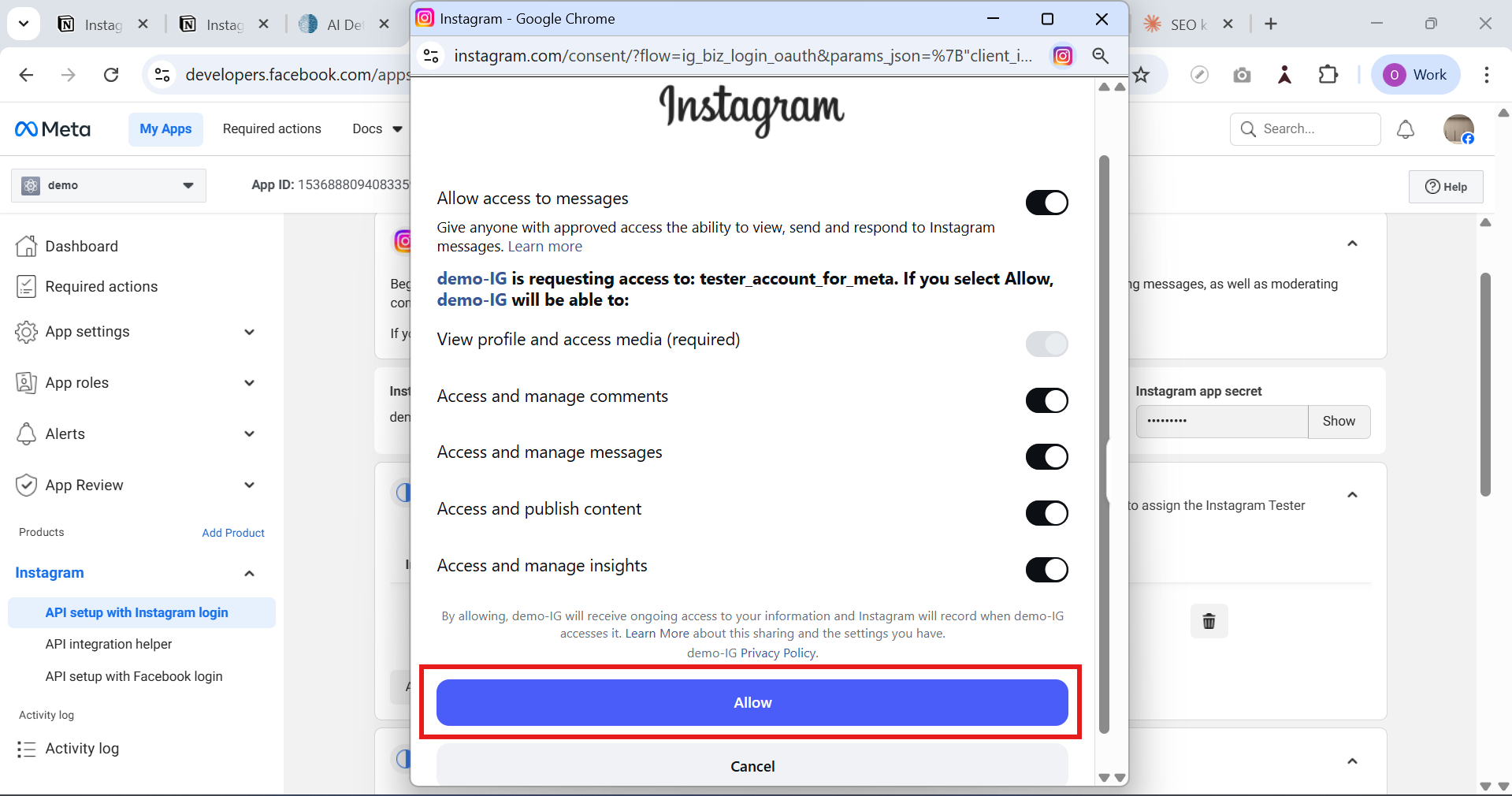
Permission for Demo IG app
Click the Allow Button.
Token generation page for the checkbox: click "I understand.”
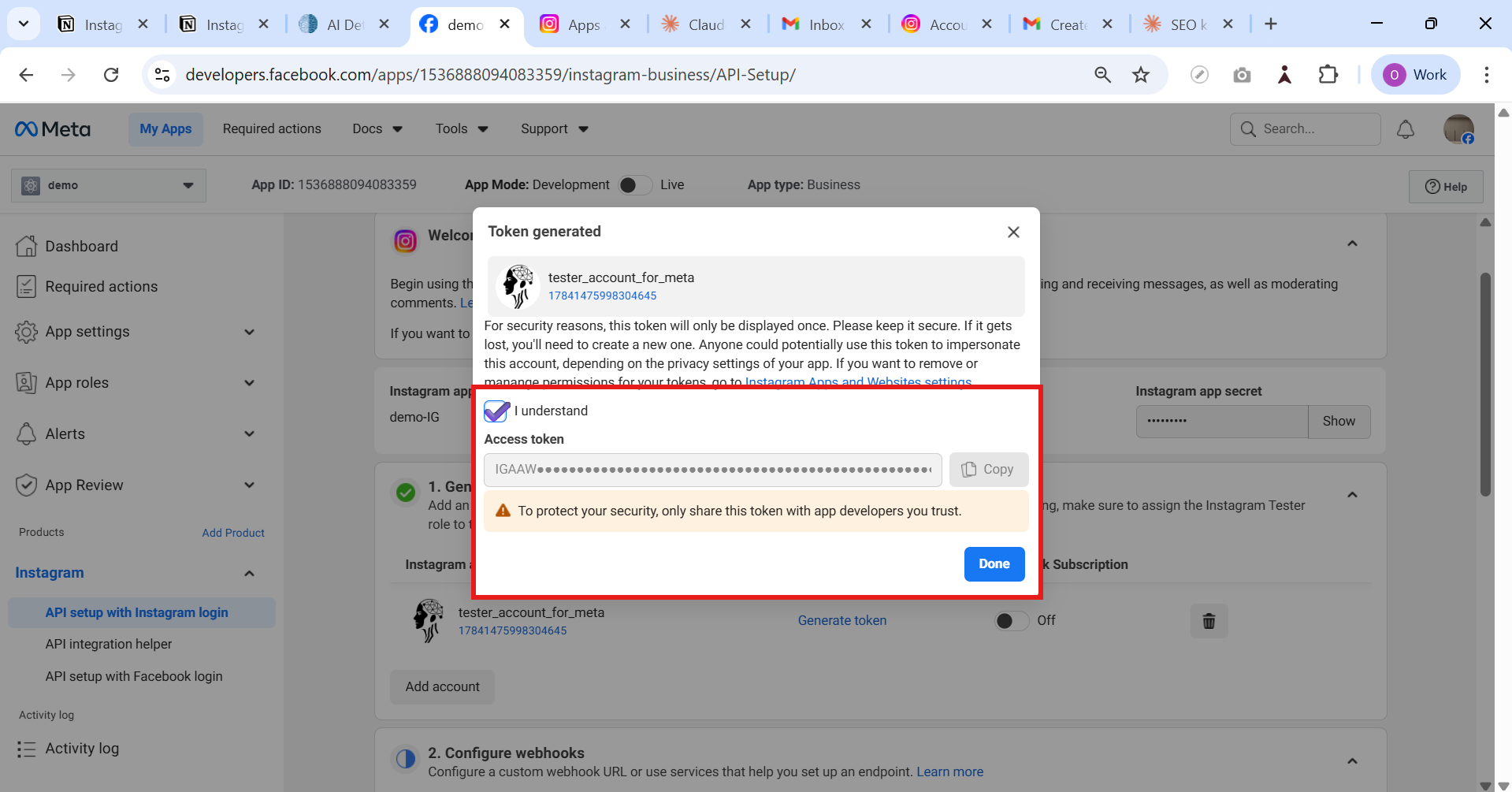
Now, finally, generate the Instagram access token
Step 4: Test the Instagram Graph API using the generated token.
Access_Token: IGAA......
In the demo app, the API setup has the Instagram login page in the top navigation and Tools in the dropdown "Graph API Explorer.”
On the previous page, you copied the Instagram access token that you need to paste in the Access Token box and then try with the API.
Finally, test if the Instagram app token is working or not.
Endpoint:
https://graph.instagram.com/v23.0/me?fields=user_id,usernameIf the generated token works.
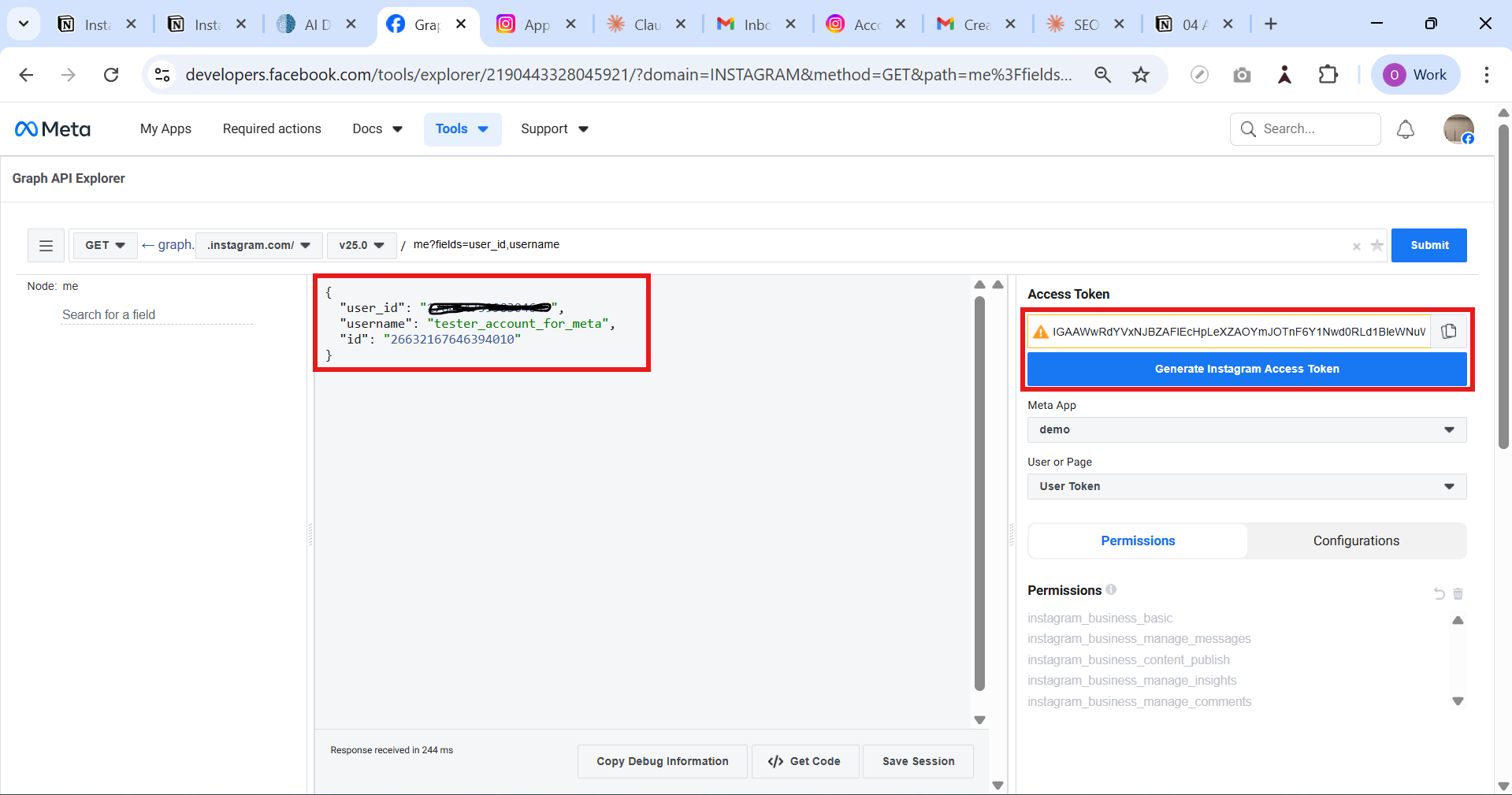
These steps are necessary to automate the Instagram chatbot to create a meta app, generate Instagram access tokens, and finally test the endpoint using the token.
This automated Instagram product does not work for one individual’s effort; it is a strong team collaboration. Every member contributes their ideas and dedication. We have successfully implemented this workflow in our product. Want to automate the Instagram chatbot? We have simplified this whole process in the website AgentZee (https://agentzee.ai/) workflow. Feel free to contact us.
Conclusion
This blog describes the step-by-step process of creating a new meta app, setting up the Instagram product to access the Instagram Graph API, generating the required access tokens, and testing with the basic endpoint. In a business strategy, a company can use the Instagram Graph API to automate Instagram. In a marketing use case, check the likes and comments to analyze the insights.
Additionally, a social media management tool can schedule posts and observe account insights through secure API access. These steps are required for building a safe. It sets up the app and generates a valid access token; it securely verifies and enables smart data exchange in Instagram Graph API integrations.
If you need to set up the Instagram automation through the Agentzee platform, we have already implemented this workflow. To integrate our Instagram automation agent into your existing business and improve efficiency and productivity, please check out our product.
Check out our product.