
How to access Google Ads Manager data via API with an access token
Prerequisites:
Create an account in the Google Cloud platform using the following link https://console.cloud.google.com/.
Create an account in Google Ads using the following link https://ads.google.com.
If you want to access your Google Ads data, generally you navigate to your dashboard and search for the metric and then analyze the data. But if you want to fetch the data through the API you need something.
Access token
Developer token (if you are using a manager account (MCC))
To get an access token, we have to create an OAuth application. That is used to authorize the user who is going to fetch the data from the Google Ads account. For this, firstly, we need to create a Google Cloud project. And then using the credentials we have to authorize our Google Ads account and we will get an access token.
Using the access token only we can fetch the data through the API. Let’s see how to create a Google Cloud project.
Steps to create a project in Google Cloud Console:
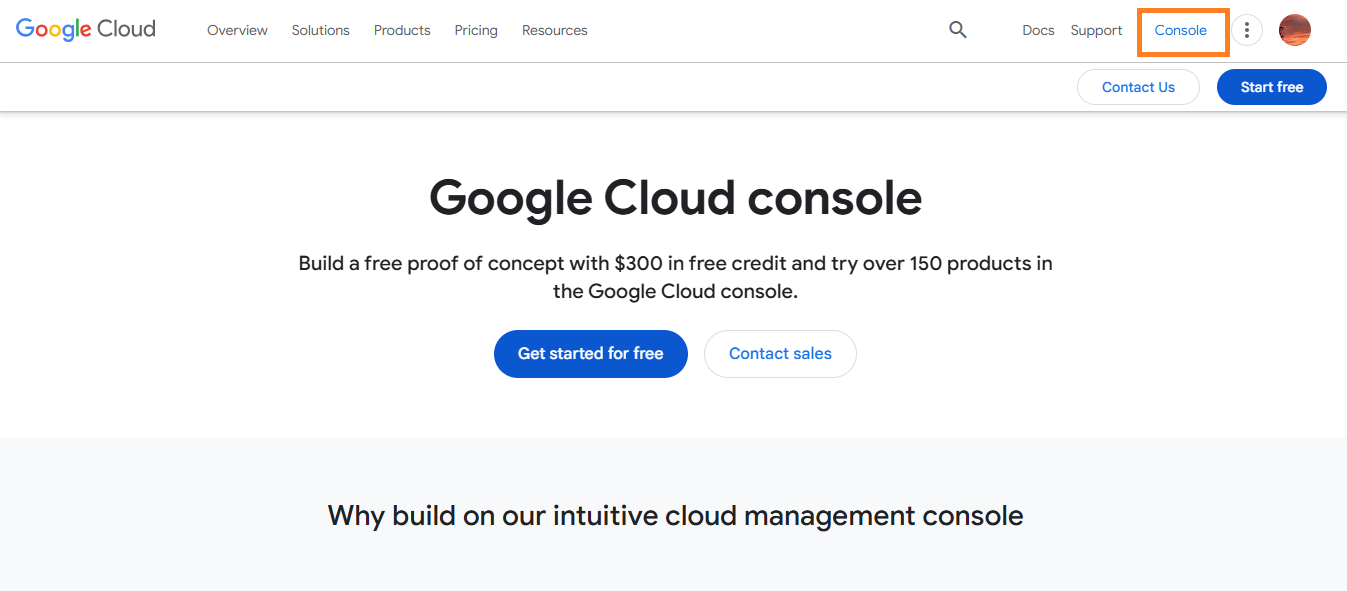
Step 1: Go to the console section in the cloud dashboard in the top right corner.
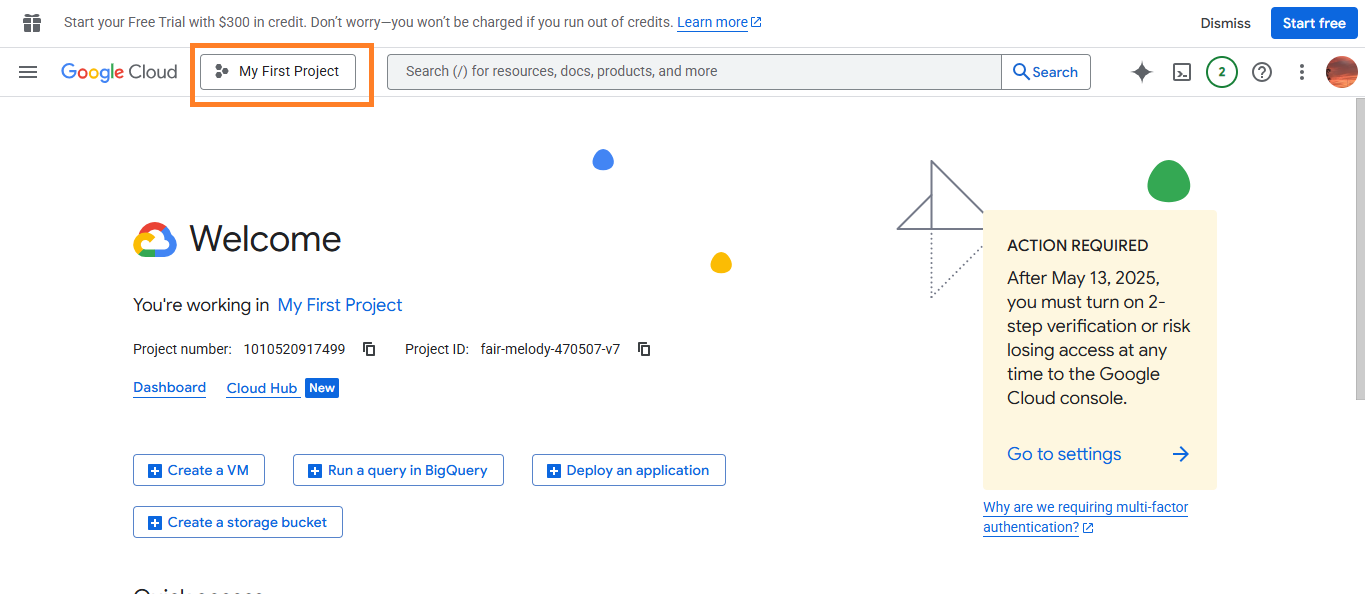
Step 2: Select the “My First Project” button.
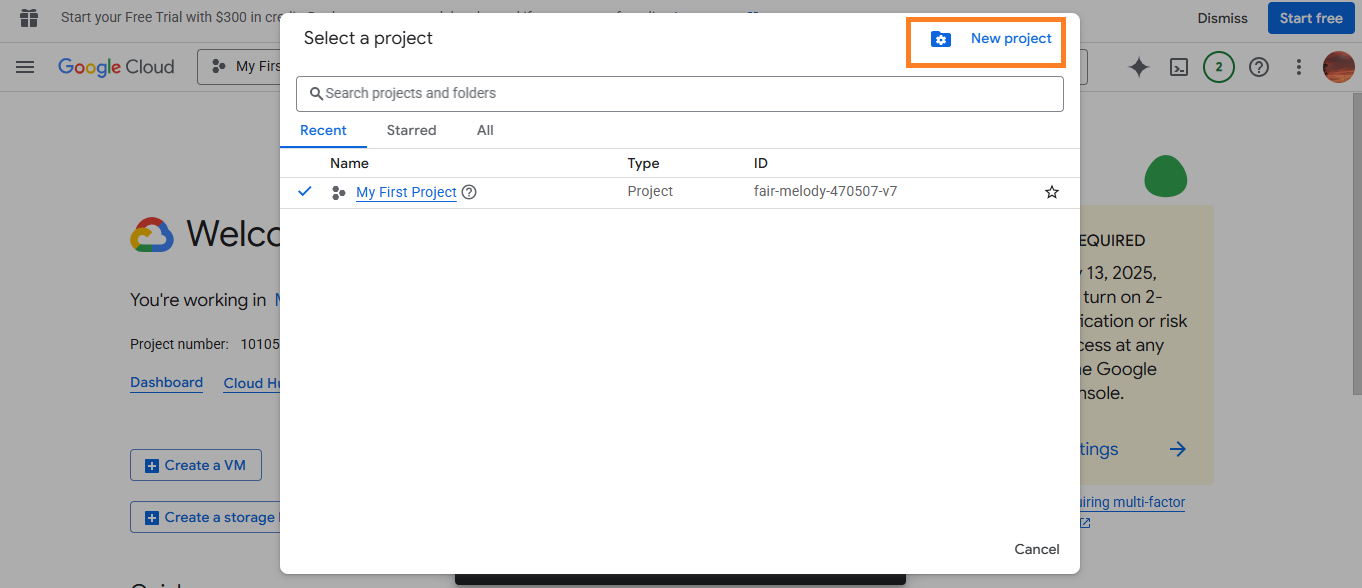
Step 3: If you don’t have any projects, then click the “New project” button in the top right corner or you can also select your existing project.
Step 4: Enter the project name and organization, and then click the “create” button.
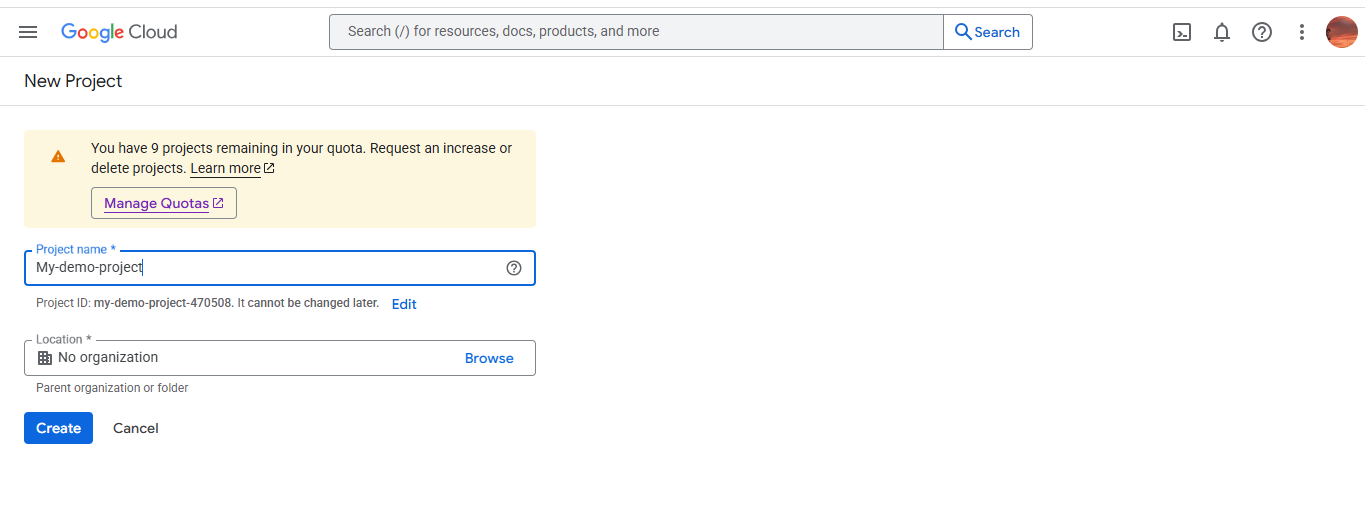
Step 5: The Google Cloud Console project has been successfully created.
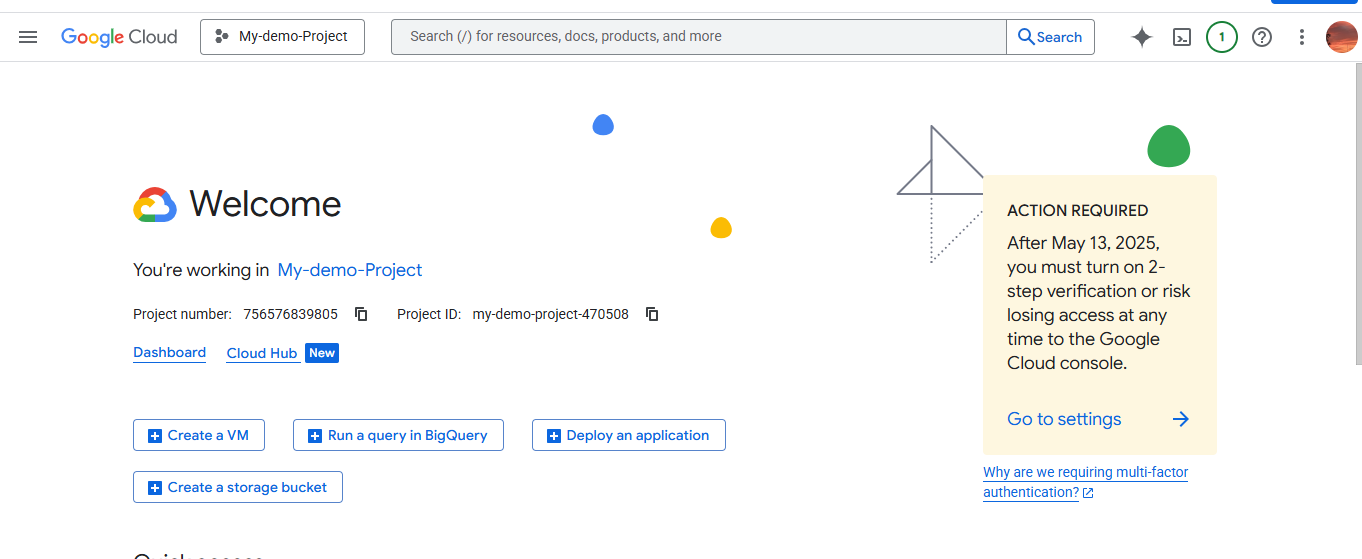
Here, we created a project. Then we are going to create credentials for the OAuth process.
OAuth Methods
For creating OAuth, there will be two methods.
Service Account (Server to server)
User OAuth (OAuth 2.0)
We can get access tokens from both. Depending on your needs, you can choose which method is going to work for your case. I’ll explain about two methods, don’t worry.
Service Account Credentials | User OAuth (OAuth 2.0) Credentials |
No refresh token. An access token never expires | Access tokens expire after every hour. |
You have to add the email that is present | Any live user can get access via OAuth. |
We can't use a service account (Method 1) directly for Google Ads because ad data belongs to the real user accounts. Google needs account-level permissions. So here we go for Method 2: user OAuth
Method 2: Configure the project and create User OAuth
In this method we don’t need to create a service account. Instead we are going to create a client. So that not only test users but also all live users can use the application credentials. That means using the same client ID and secret anyone can generate an access token. Access on behalf of a user.
The flow will be
The user logs in and gives permission
Then get a one-time code
Using this code generate an access token and a refresh token
Then access the API using the access token
Let’s see how to create a client.
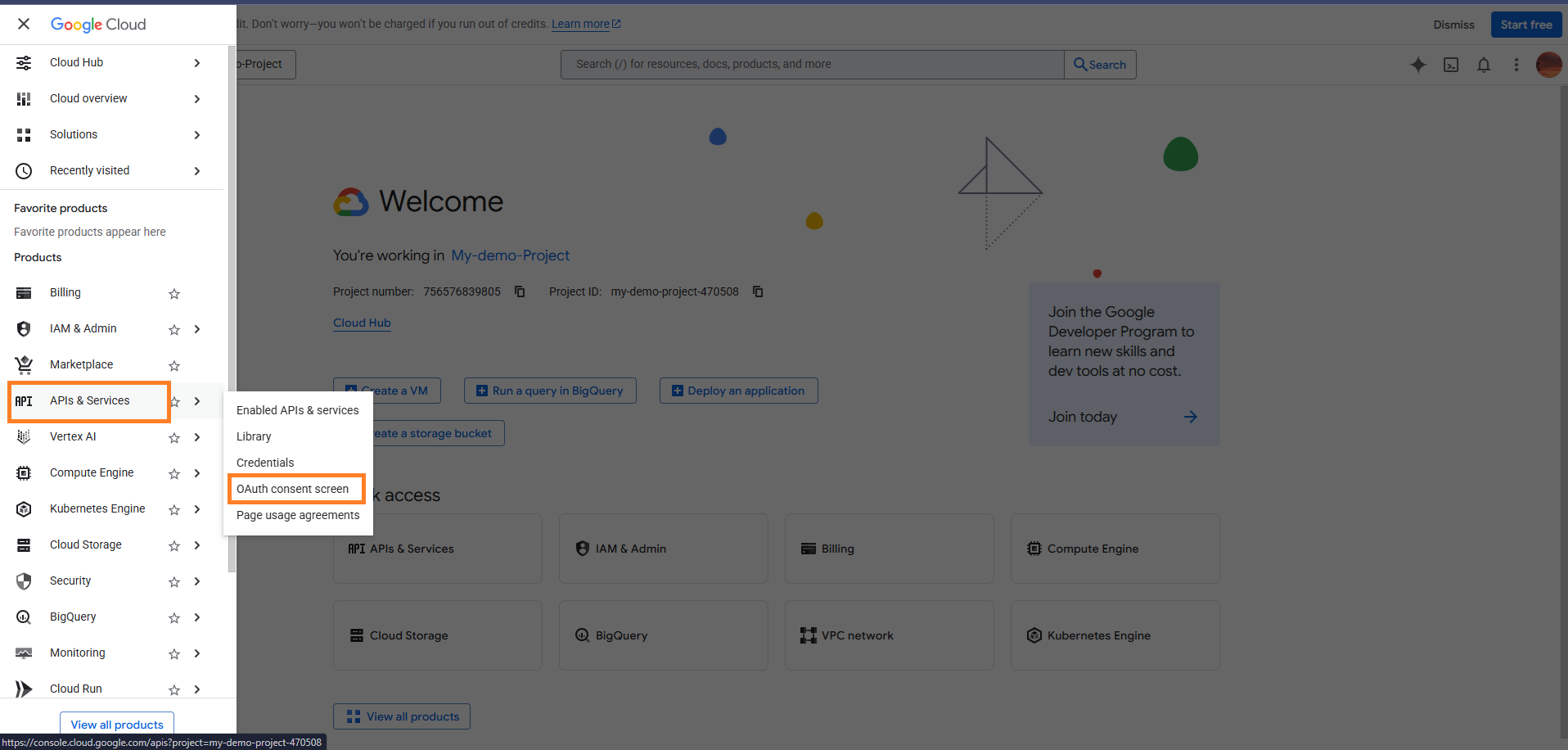
1. Select “API and Services” → OAuth consent screen
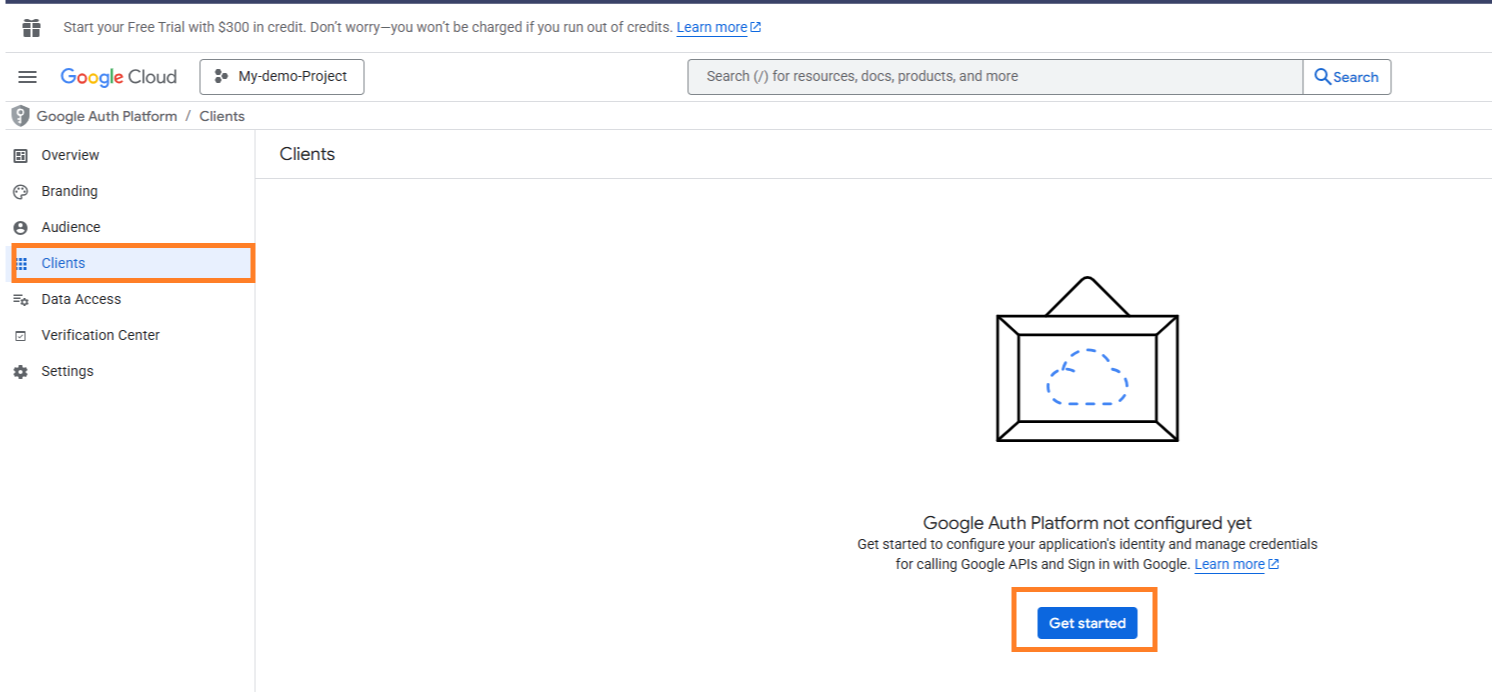
2. Then select “Clients” and then click “Get Started.”
3. Fill in all the necessary details and click "Create"
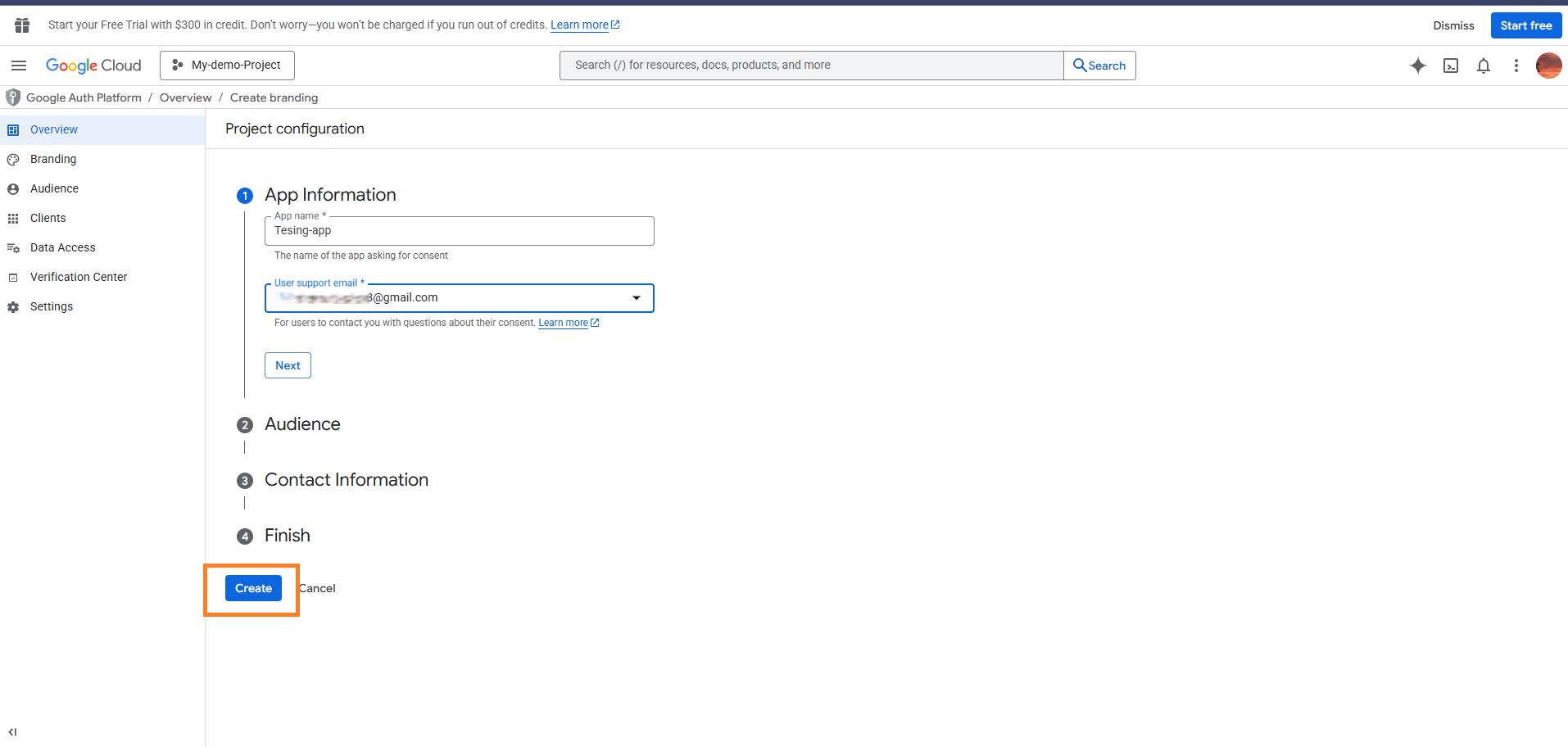
4. After configuring the project, click “clients” and click “Create client” to generate a client ID and a secret
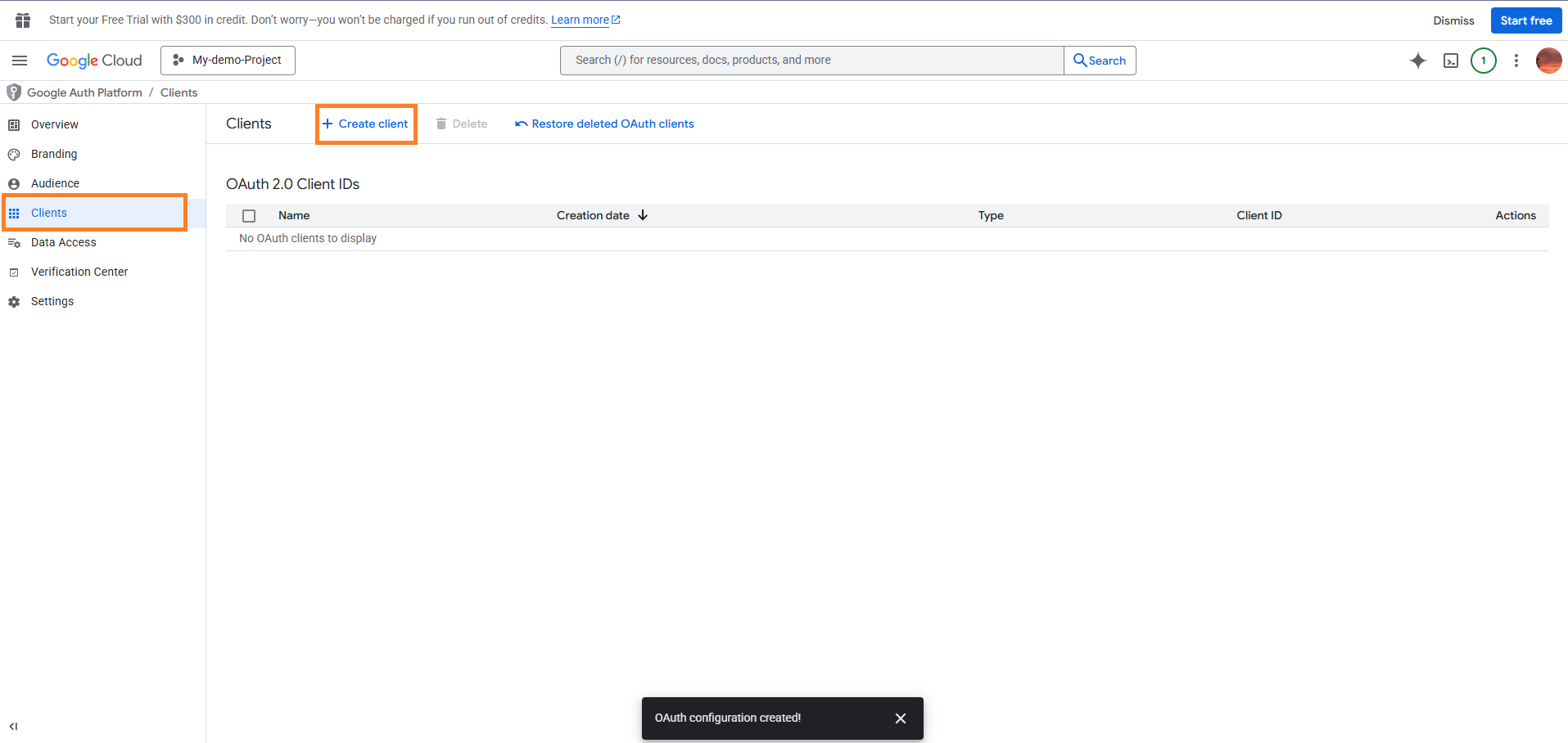
5. Choose the client type based on your need. Here we used “web application” for our needs.
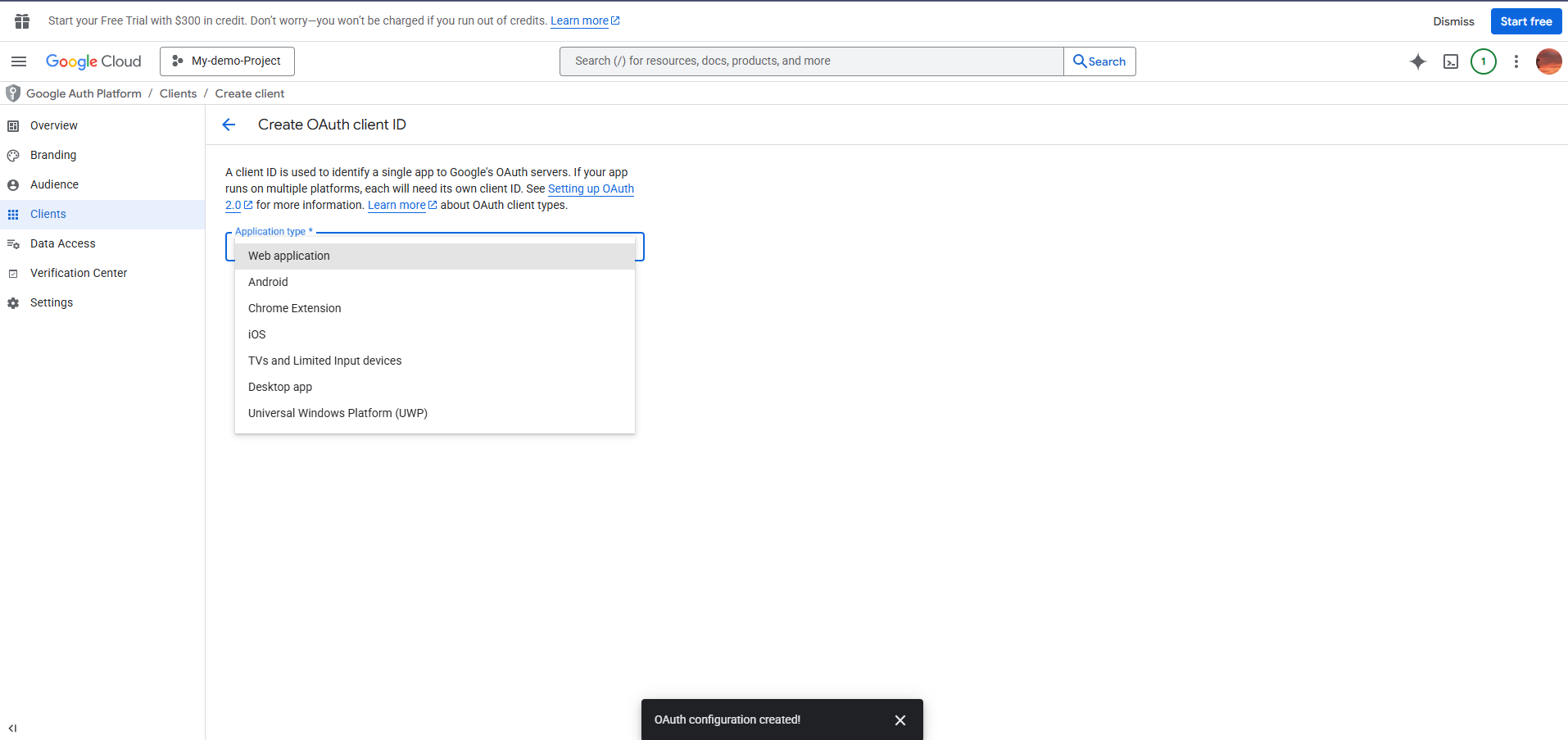
6. Then give a name for a client and add a redirect URI, then click "Create.” The redirect URI should be valid and 'https.’ Your auth code will be sent to this redirect URI only, so give a valid one.
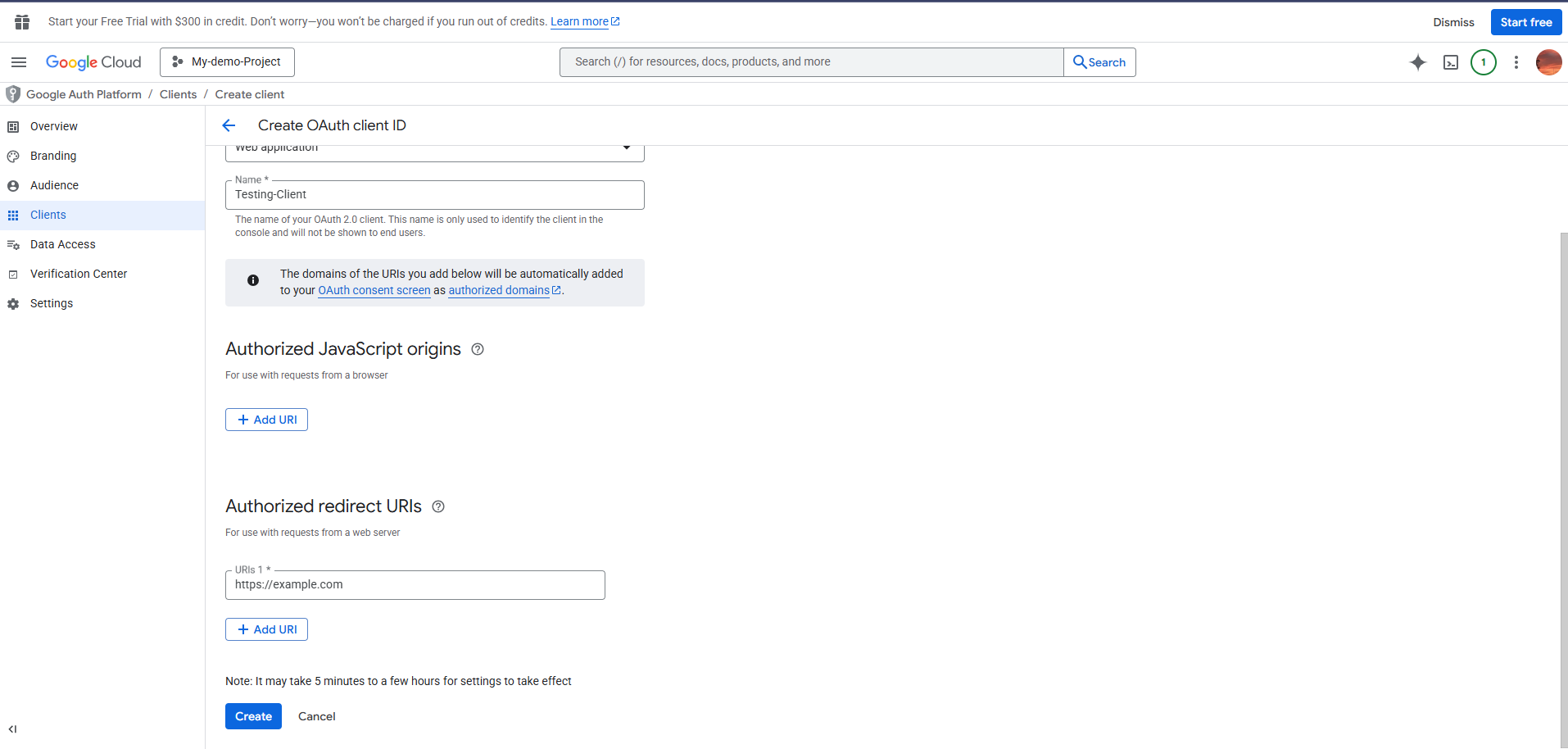
7. The client is created and the file with the client ID and client secret will be created. You can download it and use it for generating an access token later.
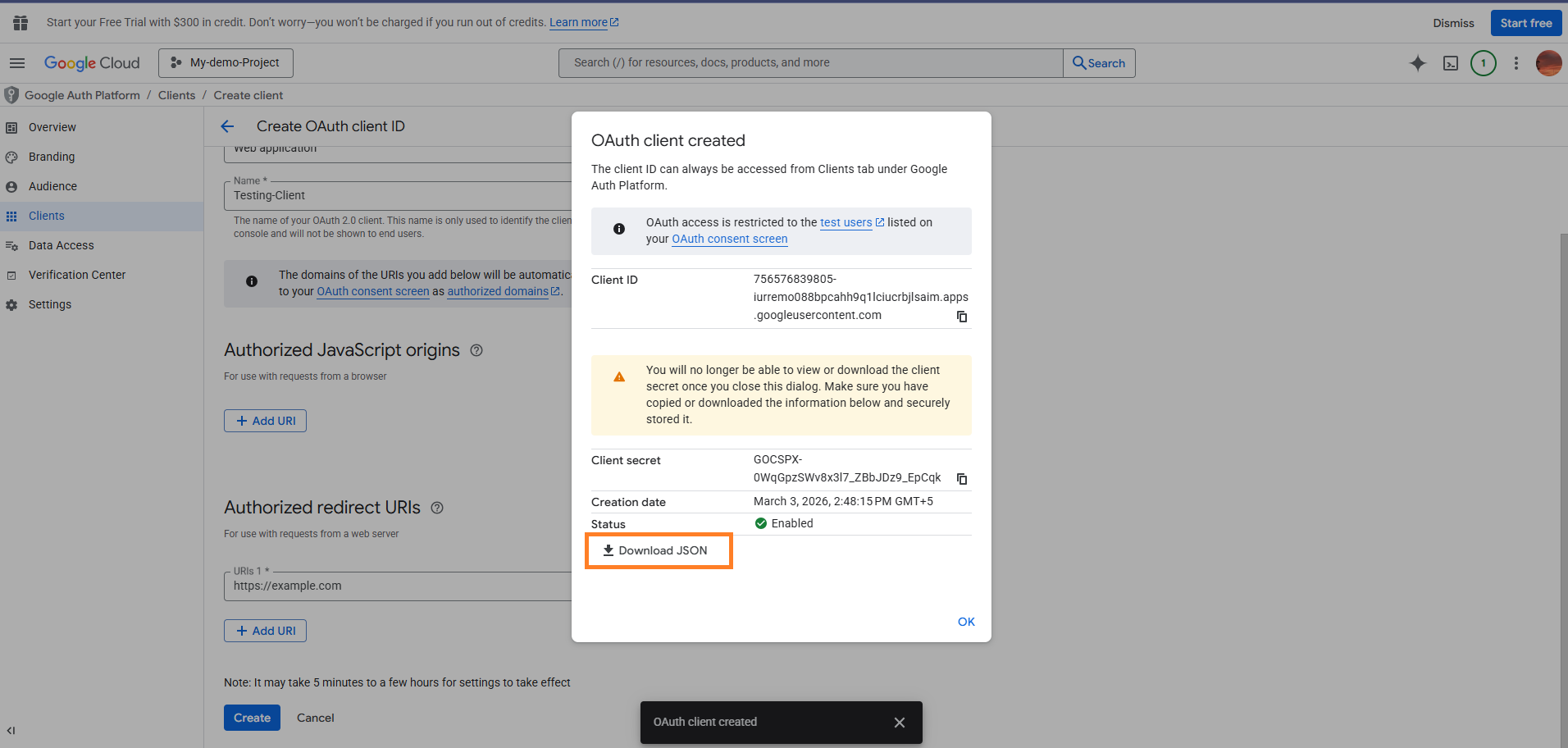
Using these credentials, any live user can get access via authorization.
Enable needed APIs in Google Cloud Console
After completing the OAuth application. We should enable the API we want. It is an important step. Without this we can’t get data. Here we use this app for Google Ads.
1. Select “API and Services.”
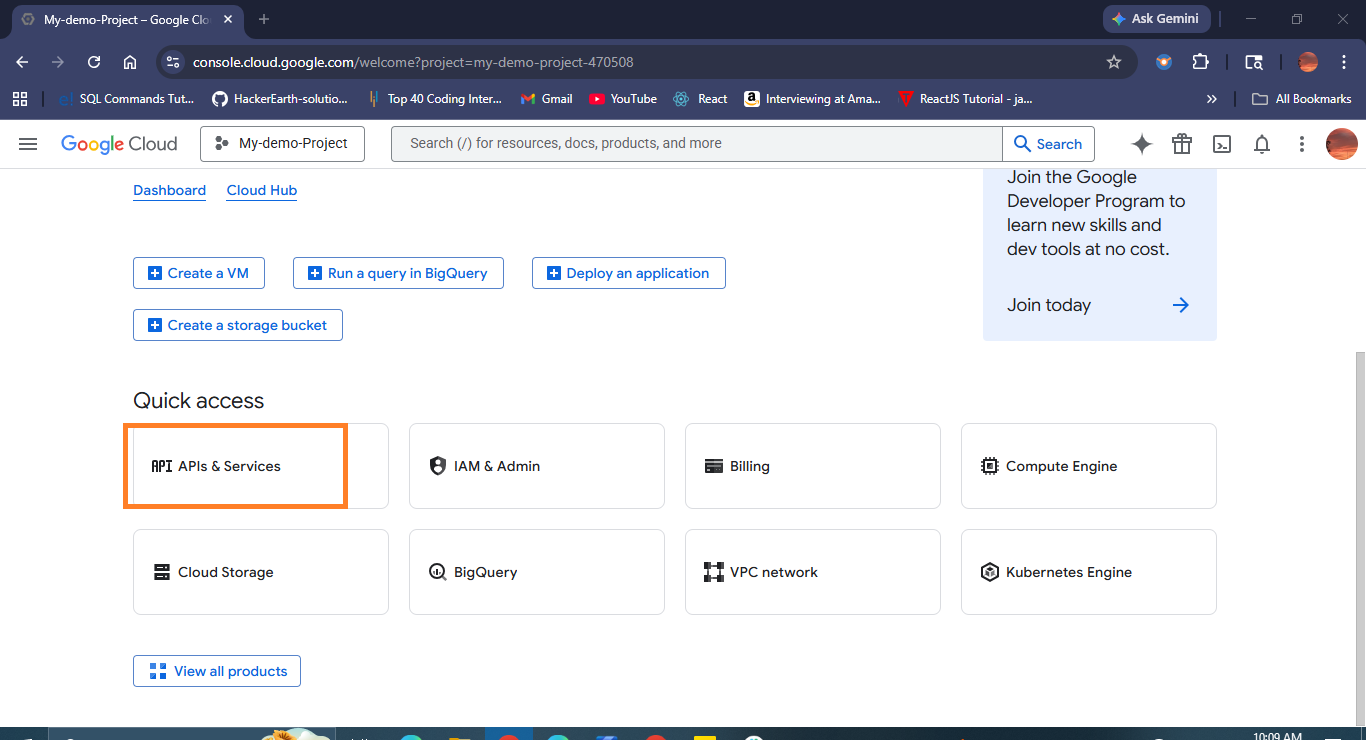
2. Click the “Enable API and Services” button.
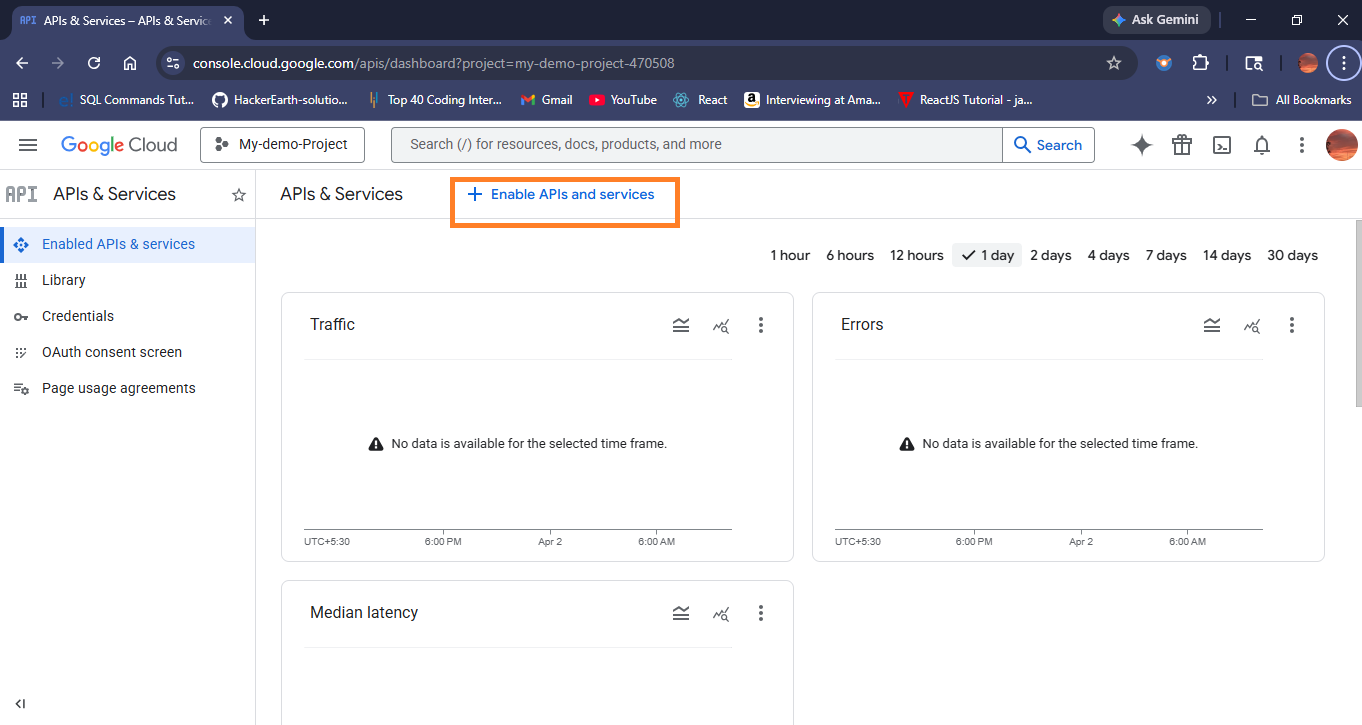
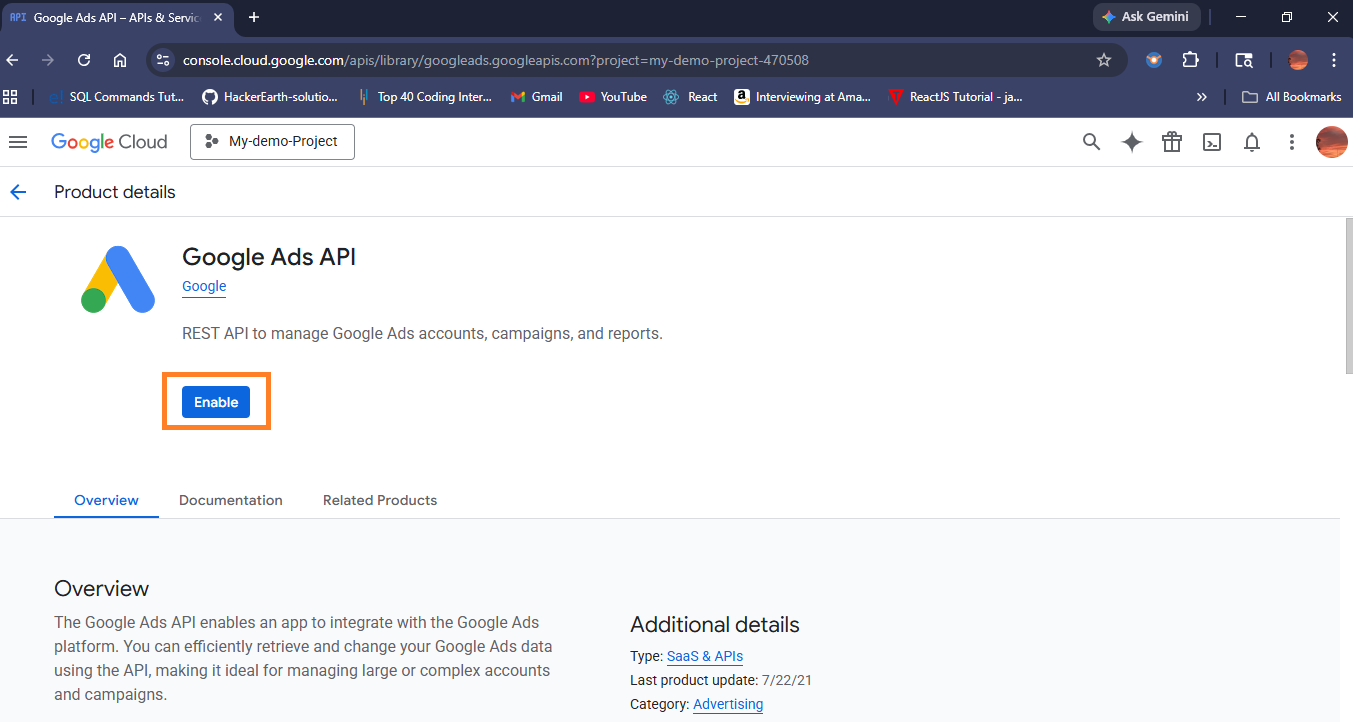
3. Type in any APIs you want, and then select and enable them. Here, we need to enable “Google Ads API”
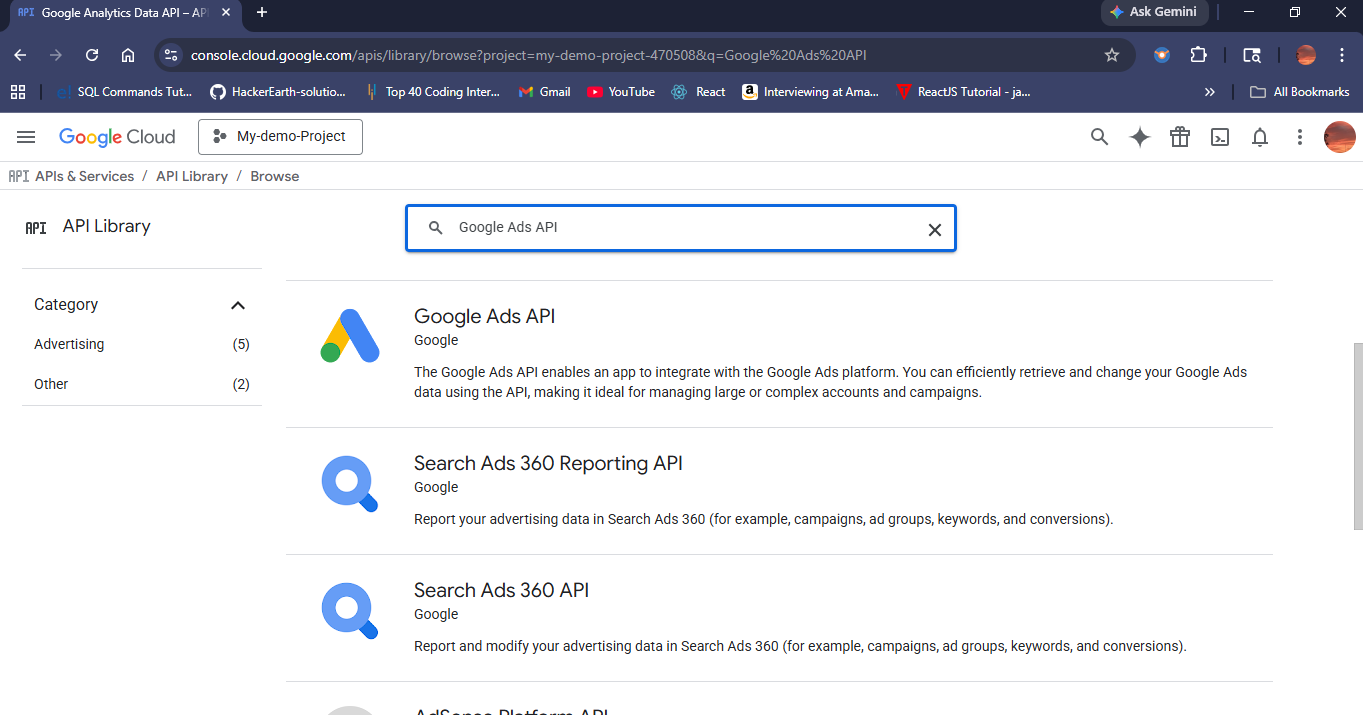
4. Select the Google Ads API and click the “Enable” button
5. Then the Google Ads API was successfully enabled.
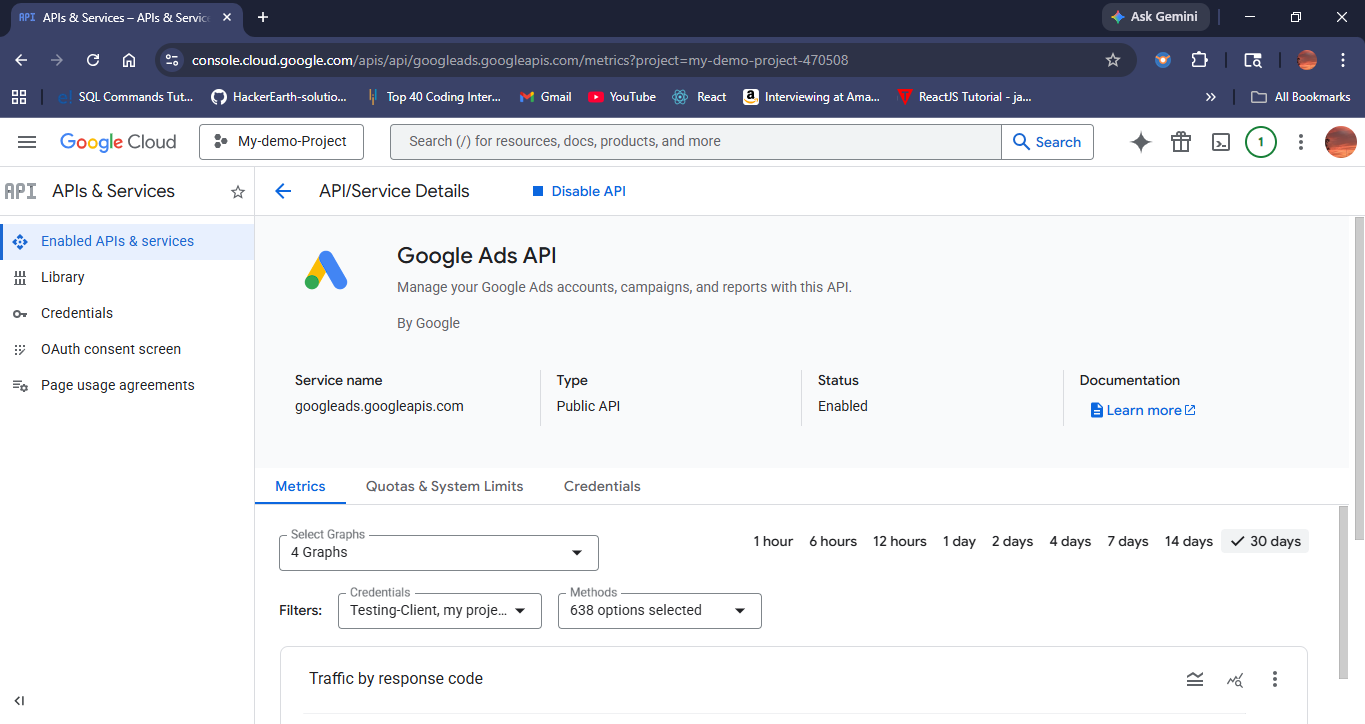
All required steps are completed. Now let’s see how to generate an access token.
To create an access token by using a client ID and client secret follow the steps below :
After downloading credentials and enabling required APIs we can generate an access token and fetch data using this.
Step 1: Generating a code to authorize the user
Replace your client ID and the redirect URI you added in the OAuth app in the URL parameters below.
Then open the link in the browser. It opens the consent screen in your browser (It's a single line URL).
https://accounts.google.com/o/oauth2/v2/auth?client_id=YOUR_CLIENT_
ID&redirect_uri=YOUR_REDIRECT_URI&response_type=code&
scope=https://www.googleapis.com/auth/adwords
&access_type=offline&prompt=consent
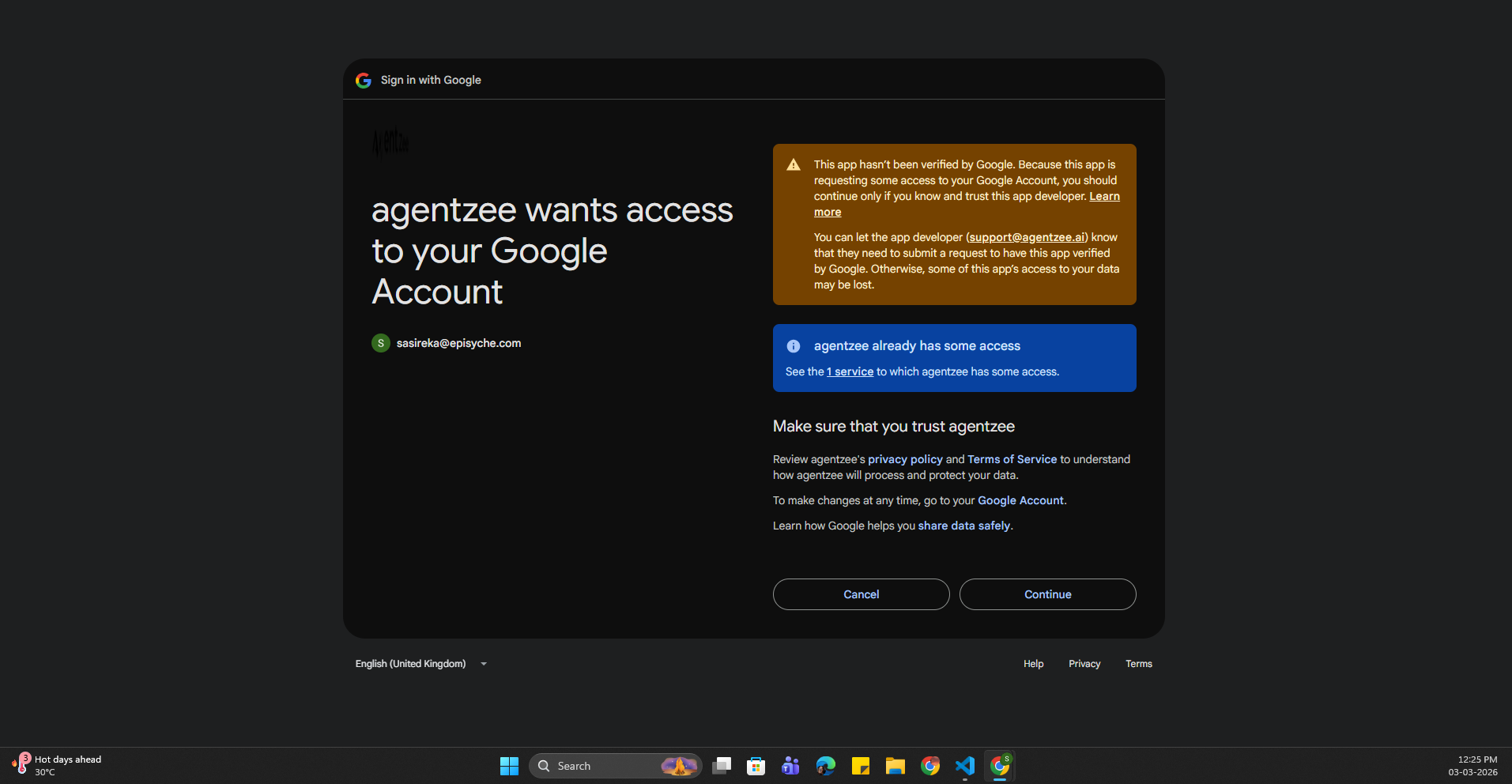
Choose the account that is linked to the Google Ads dashboard.
It will ask for a grant. Then click 'Continue.’
It will redirect you to the callback URI added.
Then you will get a code
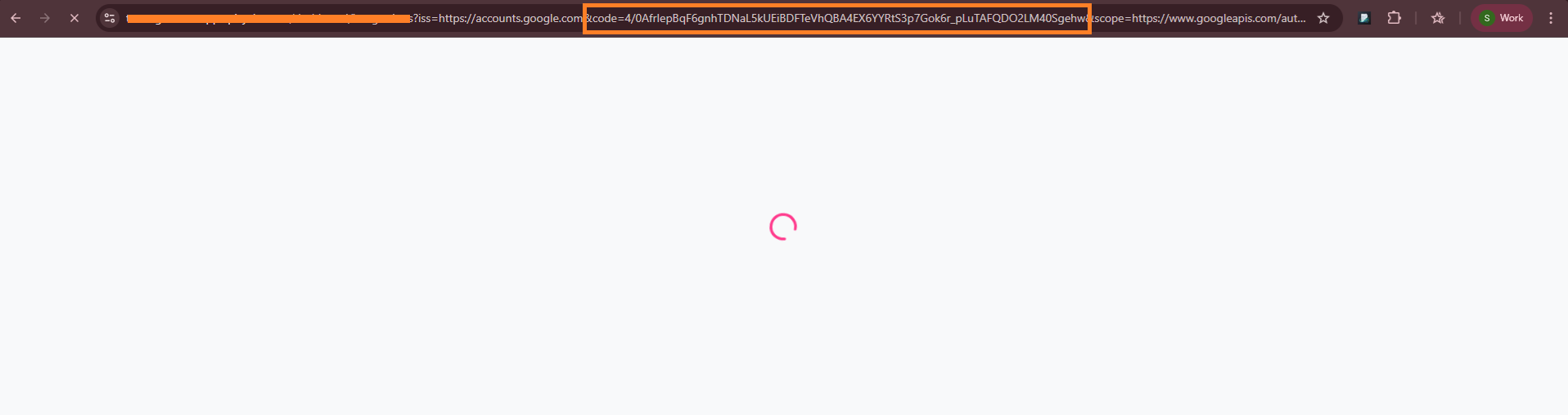
This is the code you have to use to generate an access token.
Step 2: Generating an access token through API
Now you can use the below curl for the exchange code for an access token.
Replace your code, client ID, client secret, and the same redirect URI to get an access token
curl -X POST https://oauth2.googleapis.com/token \
  -d "code=AUTHORIZATION_CODE" \
  -d "client_id=YOUR_CLIENT_ID" \
  -d "client_secret=YOUR_CLIENT_SECRET" \
  -d "redirect_uri=YOUR_REDIRECT_URI" \
  -d "grant_type=authorization_code"
The response will be like
{
"access_token": "ya29.a0AfH6SMA...",
"expires_in": 3599,
"refresh_token": "1//0gdfgsdfg...",
"scope": "https://www.googleapis.com/auth/adwords",
"token_type": "Bearer"
}
Now you can use this access token for API calls. After an hour this access token becomes invalid. So you need to regenerate it by using a refresh token.
Step 3: Regenerating an access token
curl -X POST https://oauth2.googleapis.com/token \
  -d client_id=YOUR_CLIENT_ID \
  -d client_secret=YOUR_CLIENT_SECRET \
  -d refresh_token=YOUR_REFRESH_TOKEN \
  -d grant_type=refresh_token
Here replace your client ID, secret, and refresh token to apply for a new access token.
Steps to applying for a developer token
To apply, you need a manager account (MCC). But if you are using a single user account, Firstly create a manager account and later link your existing account. With an access token we need to pass the developer token as well to fetch the data through the API.
Step 1: Go to the Google Ads Manager, then open the API center
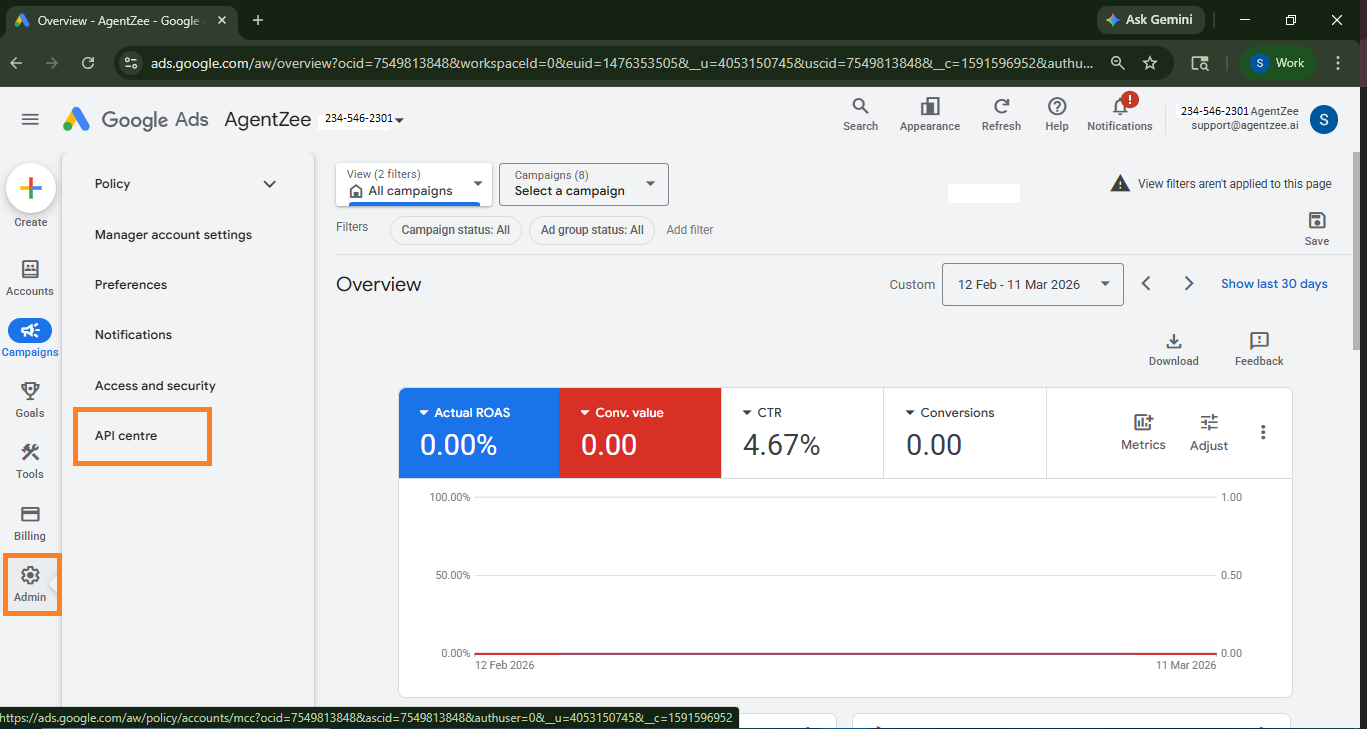
Then you will be redirected to the API center page. There, you can get a developer token for a test account. Only test users can use it.
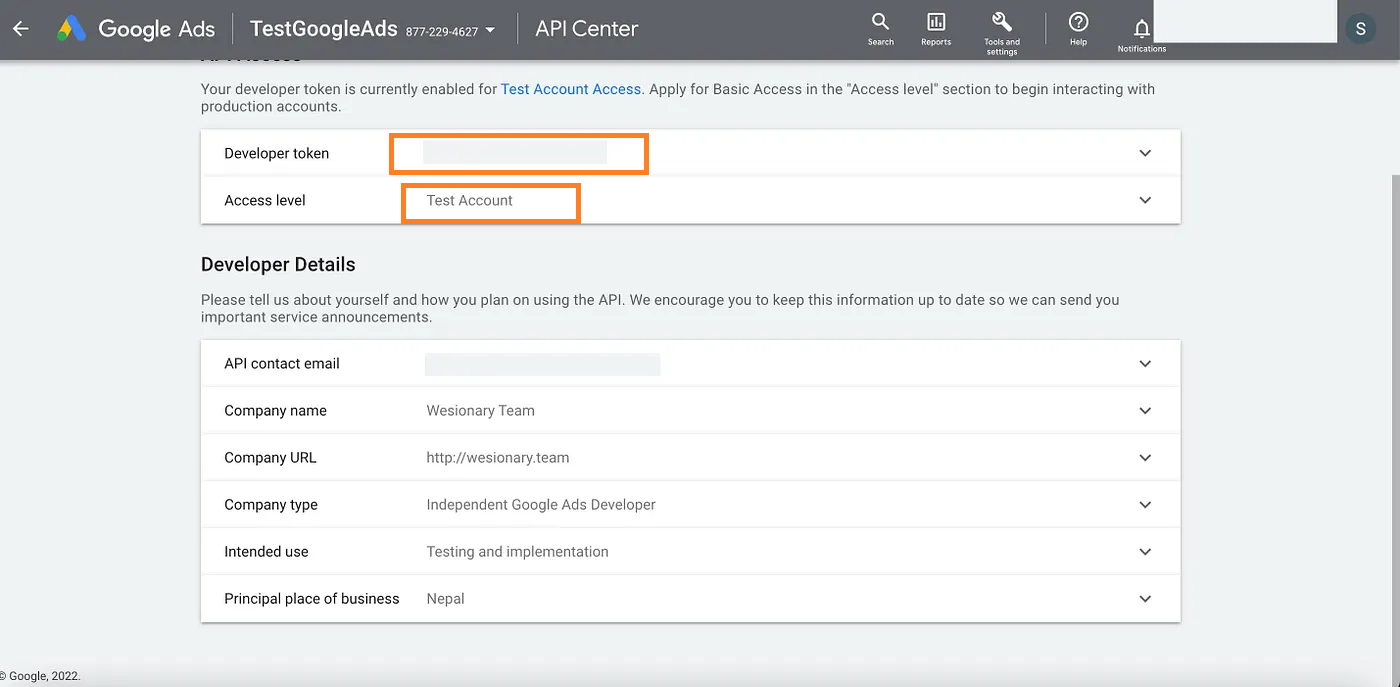
You can use the test developer token for internal use. If you want it to be used by all users, then you have to apply for a basic or advanced level developer token based on your needs.
Step 2: Apply for a basic-level developer token
To apply for the basic-level developer token, you need to submit a form. This basic-level developer token allows test accounts and production accounts to make API requests. This level allows the developer token to execute up to 15000 operations per day.
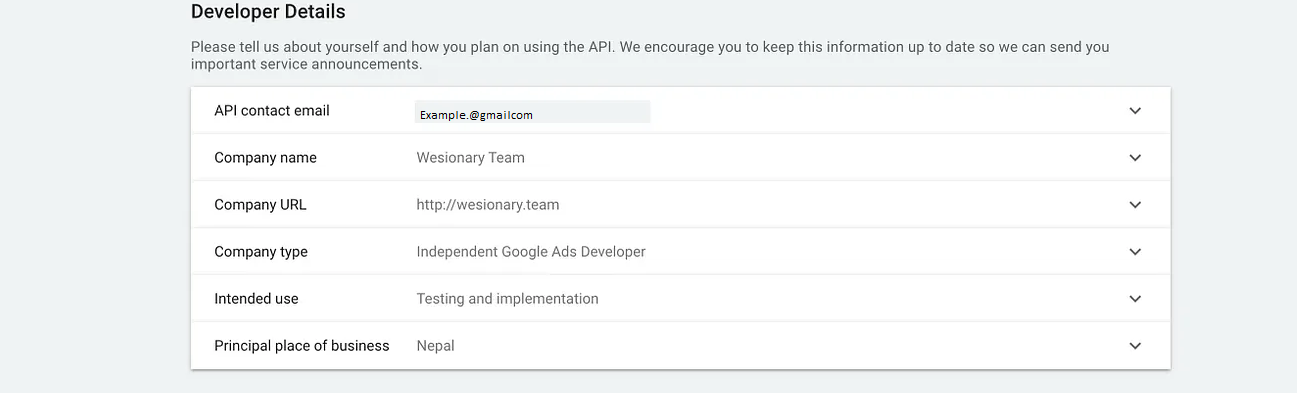
Fill all the fields and apply for a basic-level token. After a day, you will get a token, then use it for API access. After completing all steps we can directly fetch the data.
Sample API to fetch campaign details:
Let’s see how to use this access token and developer token in the API request.
Here replace your customer ID, access token, developer token and manager account ID.
curl -X POST "https://googleads.googleapis.com/v16/customers/CUSTOMER_ID/googleAds:searc
h" \
-H "Authorization: Bearer ACCESS_TOKEN" \
-H "developer-token: DEVELOPER_TOKEN" \
-H "login-customer-id: MANAGER_CUSTOMER_ID" \
-H "Content-Type: application/json" \
-d '{
  "query": "
    SELECT
      campaign.id,
      campaign.name,
      ad_group.id,
      ad_group.name,
      metrics.impressions,
      metrics.clicks,
      metrics.ctr,
      metrics.average_cpc,
      metrics.cost_micros,
      metrics.conversions,
      segments.date
    FROM ad_group
    WHERE segments.date BETWEEN '\''2026-02-01'\'' AND '\''2026-02-28'\''
    ORDER BY segments.date DESC
  "
}'
Sample response:
{
  "results": [
    {
      "campaign": {
        "id": "123456789",
        "name": "Search Campaign"
      },
      "adGroup": {
        "id": "987654321",
        "name": "Running Shoes Ads"
      },
      "metrics": {
        "impressions": "5400",
        "clicks": "320",
        "ctr": "5.92",
        "averageCpc": "1500000",
        "costMicros": "48000000",
        "conversions": "25"
      },
      "segments": {
        "date": "2026-02-20"
      }
    }
  ]
}